
Saglasnosti
Consent Forms
Digitalna saglasnost u pet koraka, potpis na telefonu, PDF i potpisivanje na daljinu preko linka.
A digital consent in five steps, signing on the phone, PDF, and remote signing via a link.
Ažurirano za verziju 1.7.0 - oktobar 2026
Updated for version 1.7.0 - October 2026
Pokretanje nove saglasnosti
Novu saglasnost pokrećeš sa mesta na kom se već nalaziš:
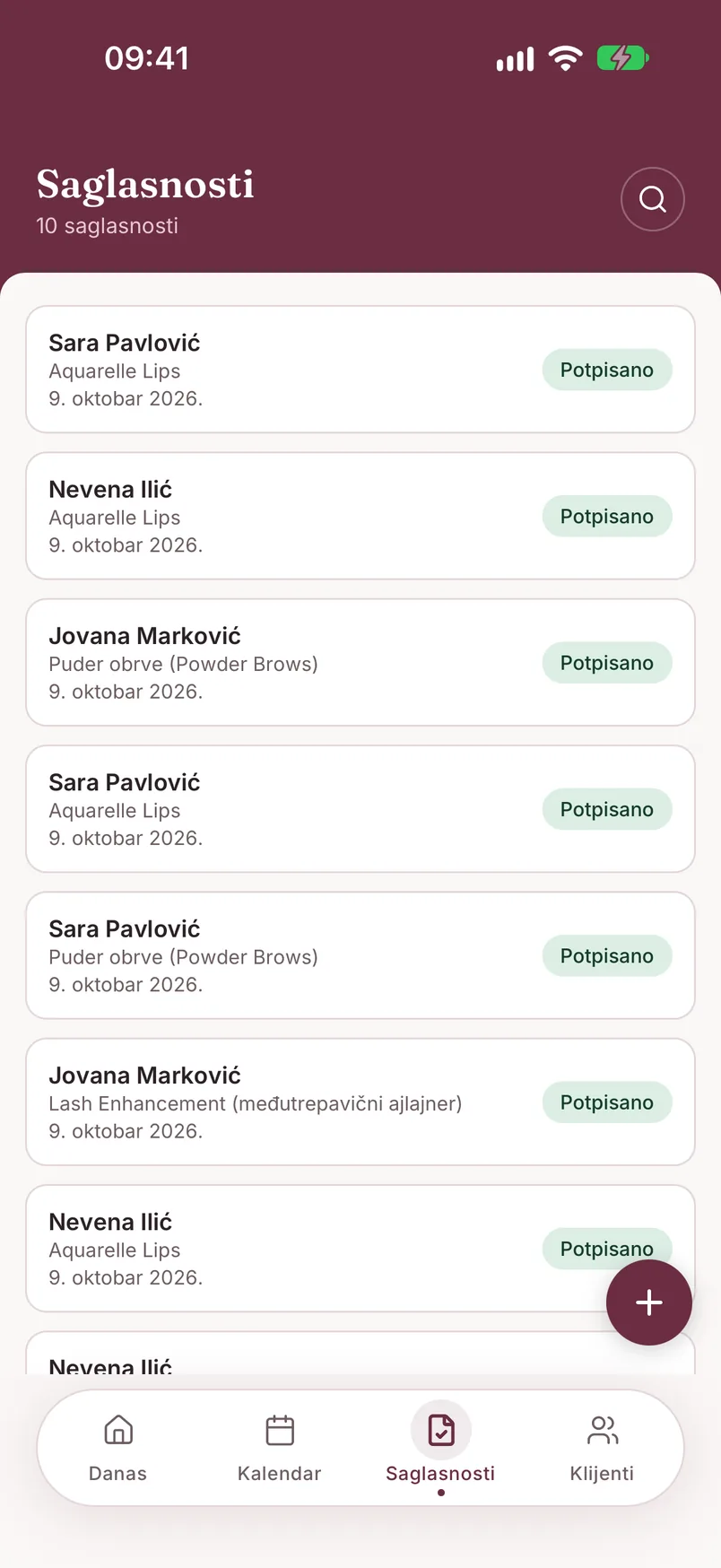
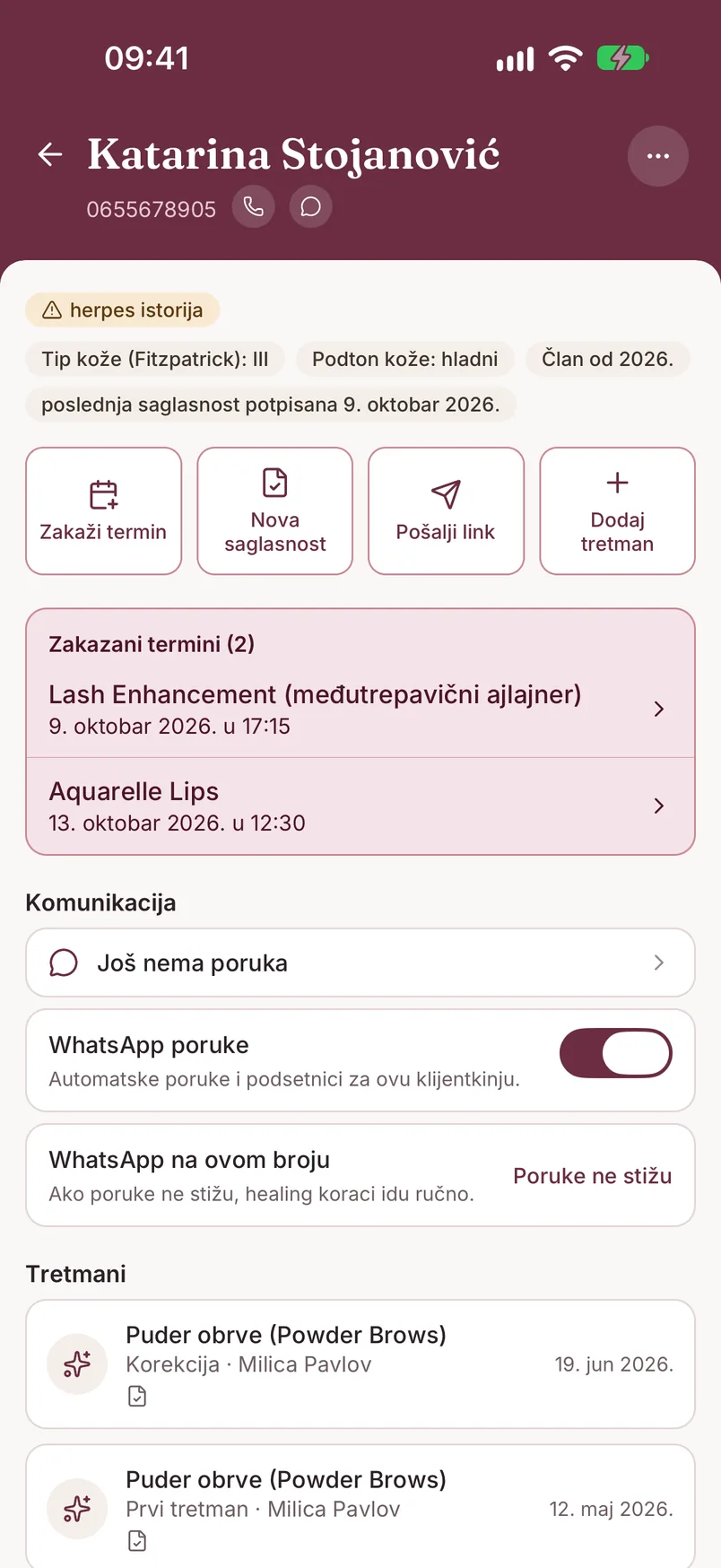
- karton klijentkinje - dugme „Nova saglasnost"
- tab „Saglasnosti" - plus dugme u donjem desnom uglu
- ekran „Danas" - „Pokreni saglasnost" na kartici termina, ili dugme „Saglasnost" pri dnu za klijentkinju bez termina
- formular i detalji tretmana - „+ Nova saglasnost"
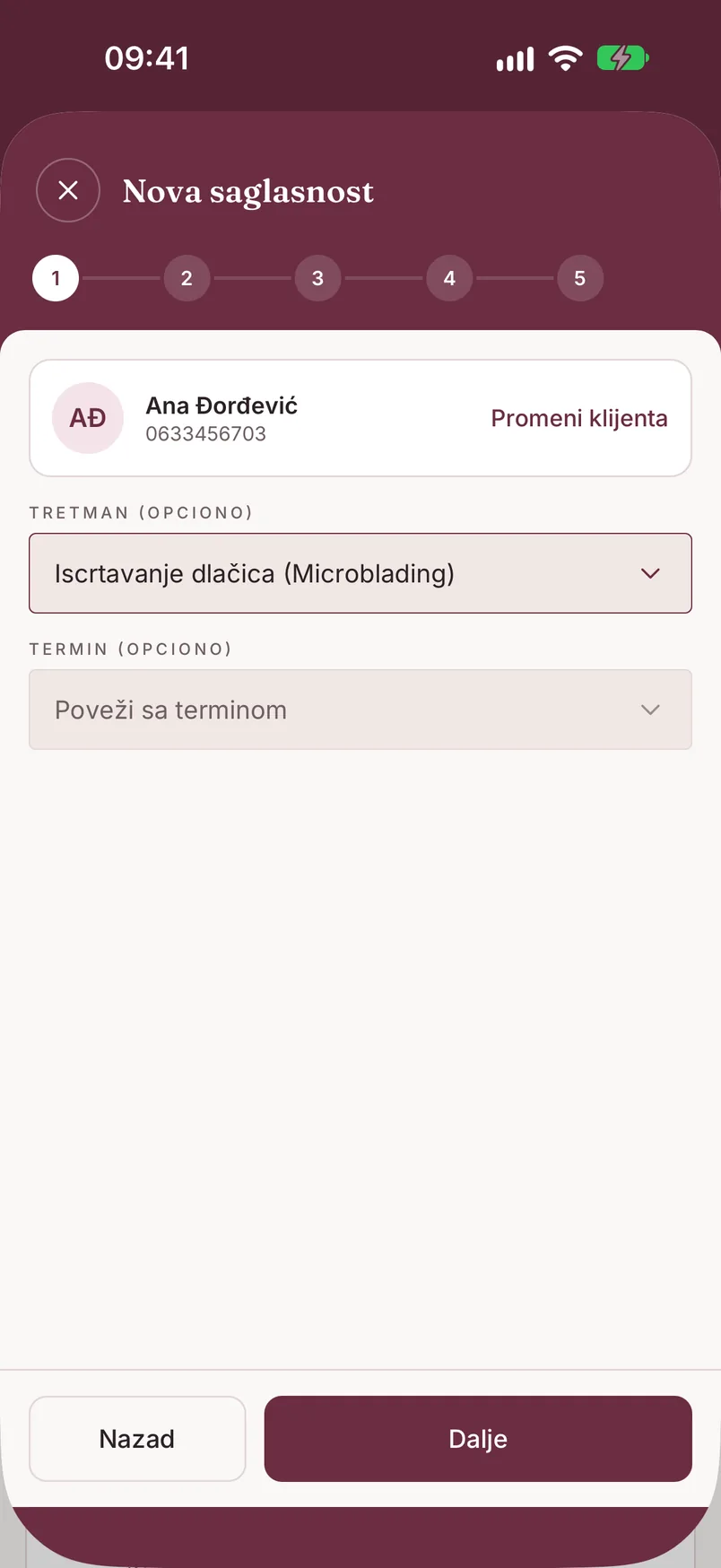
Otvara se vodič u 5 koraka, sa dugmadima „Nazad" i „Dalje" pri dnu. Telefon u ovom trenutku obično daješ klijentkinji u ruke - pitanja su pisana njoj.
U prvom koraku biraš klijentkinju (pretraga po imenu ili telefonu; ako je nema, „Klijent nije na listi?" > „Dodaj novog" otvara karton na licu mesta) i, opciono, tretman i termin. Kad saglasnost pokreneš sa kartona ili iz termina, ti podaci su već popunjeni.
Zdravstveni upitnik
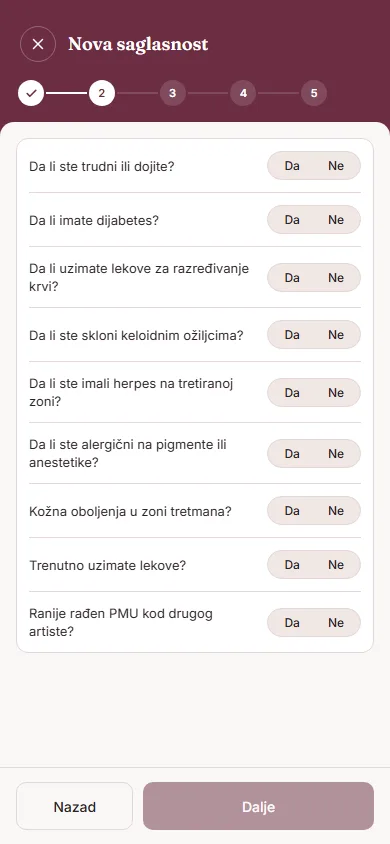
Drugi korak su pitanja sa odgovorom Da / Ne:
- Da li ste trudni ili dojite?
- Da li imate dijabetes?
- Da li uzimate lekove za razređivanje krvi?
- Da li ste skloni keloidnim ožiljcima?
- Da li ste imali herpes na tretiranoj zoni?
- Da li ste alergični na pigmente ili anestetike?
- Kožna oboljenja u zoni tretmana?
- Trenutno uzimate lekove?
- Ranije rađen PMU kod drugog artiste?
Ako klijentkinja već ima raniju saglasnost, odgovori su unapred popunjeni uz napomenu „Popunjeno na osnovu prošle posete - proveri odgovore." Svakako ih prođi sa njom pre nego što nastaviš.
Svaki odgovor „Da" kasnije se vidi na vrhu kartona kao žuta oznaka upozorenja (npr. „herpes istorija"), da ti bude pred očima pre sledećeg tretmana.
Informisanost i saglasnosti
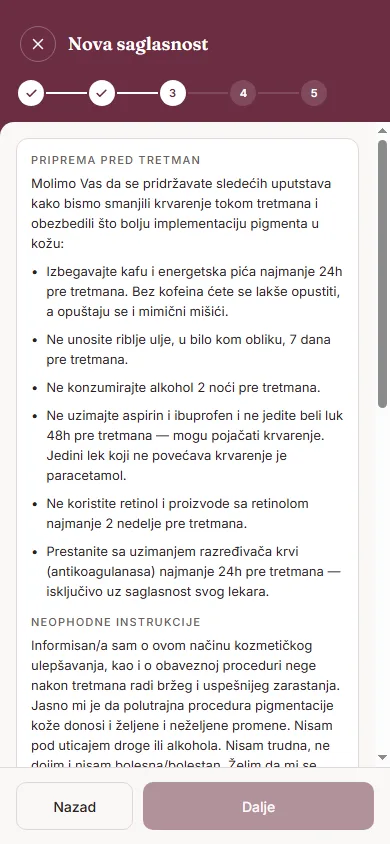
Treći korak, „Informisanost", prikazuje dva teksta: „Priprema pred tretman" i „Neophodne instrukcije" (rizici, nega, kontrola). Na dnu je potvrda „Pročitao/la sam i razumem" - dok se ne označi, dugme „Dalje" je neaktivno.
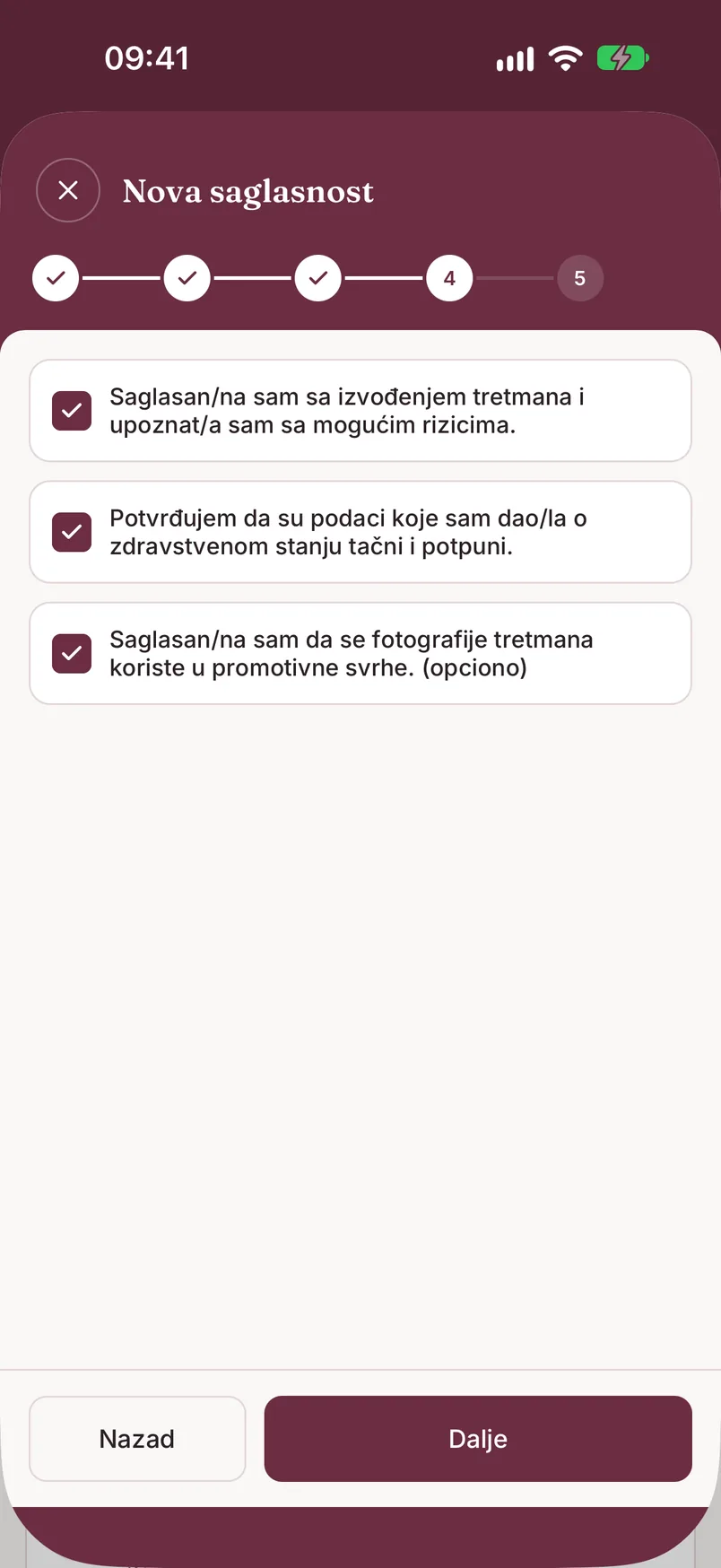
Četvrti korak, „Saglasnosti", ima tri izjave:
- saglasnost sa izvođenjem tretmana i upoznatost sa mogućim rizicima
- potvrda da su podaci o zdravstvenom stanju tačni i potpuni
- saglasnost da se fotografije tretmana koriste u promotivne svrhe - opciono
Potpis
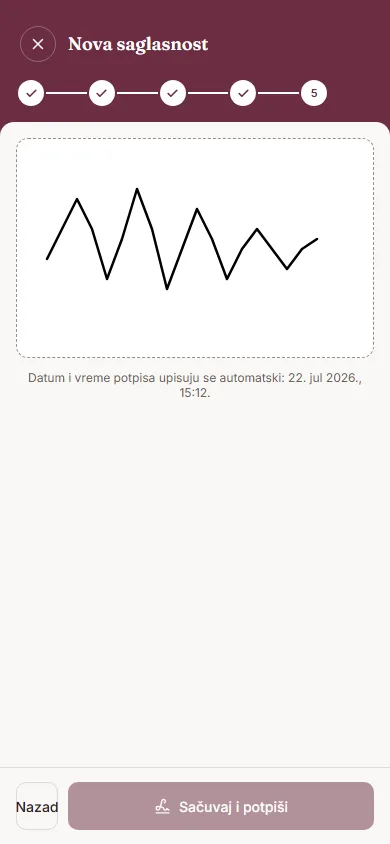
U poslednjem koraku klijentkinja se potpisuje prstom direktno na ekranu tvog telefona. „Obriši potpis" briše polje ako želi da pokuša ponovo. Datum i vreme potpisa upisuju se automatski.
Dodirni „Sačuvaj i potpiši". Ako je polje prazno, aplikacija javlja „Potpis je obavezan".
Posle čuvanja biraš šta dalje: „Zabeleži tretman" (saglasnost se sama povezuje sa tim tretmanom), „Pogledaj PDF", „Pošalji klijentu na email" ili „Gotovo".
PDF pregled i deljenje
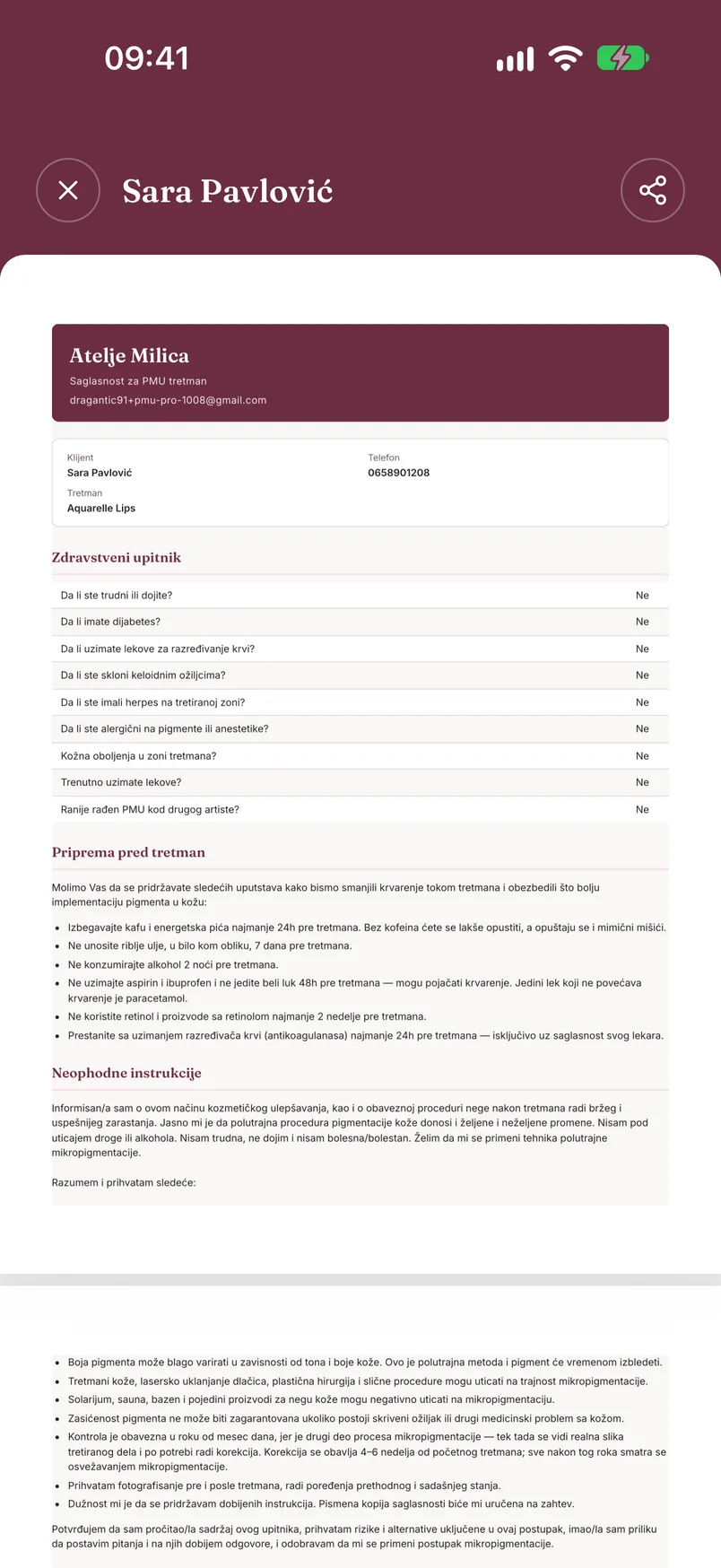
Svaka potpisana saglasnost postaje PDF dokument sa nazivom tvog salona, podacima klijentkinje, odgovorima iz upitnika, tekstom koji je pročitala, izjavama i potpisom.
Kad saglasnost otvoriš sa liste ili sa kartona, na raspolaganju su:
- „Pregledaj PDF" - prikaz dokumenta u aplikaciji
- „Podeli / Preuzmi" - sistemski meni telefona (čuvanje u fajlove, Viber, WhatsApp, štampa...)
- „Pošalji na email" - PDF ide na email adresu sa kartona klijentkinje, uz potvrdu pre slanja. Ako email nije unet, aplikacija te upućuje da ga dodaš na kartonu
Sa istog ekrana saglasnost možeš da povežeš sa tretmanom („Poveži sa tretmanom…") ili da odmah zabeležiš nov („Zabeleži tretman").
Potpisivanje na daljinu Pro
Klijentkinja može da popuni i potpiše saglasnost sa svog telefona, pre nego što dođe u salon. Ti joj šalješ link, ona ga otvara u pregledaču - bez instaliranja aplikacije i bez naloga.
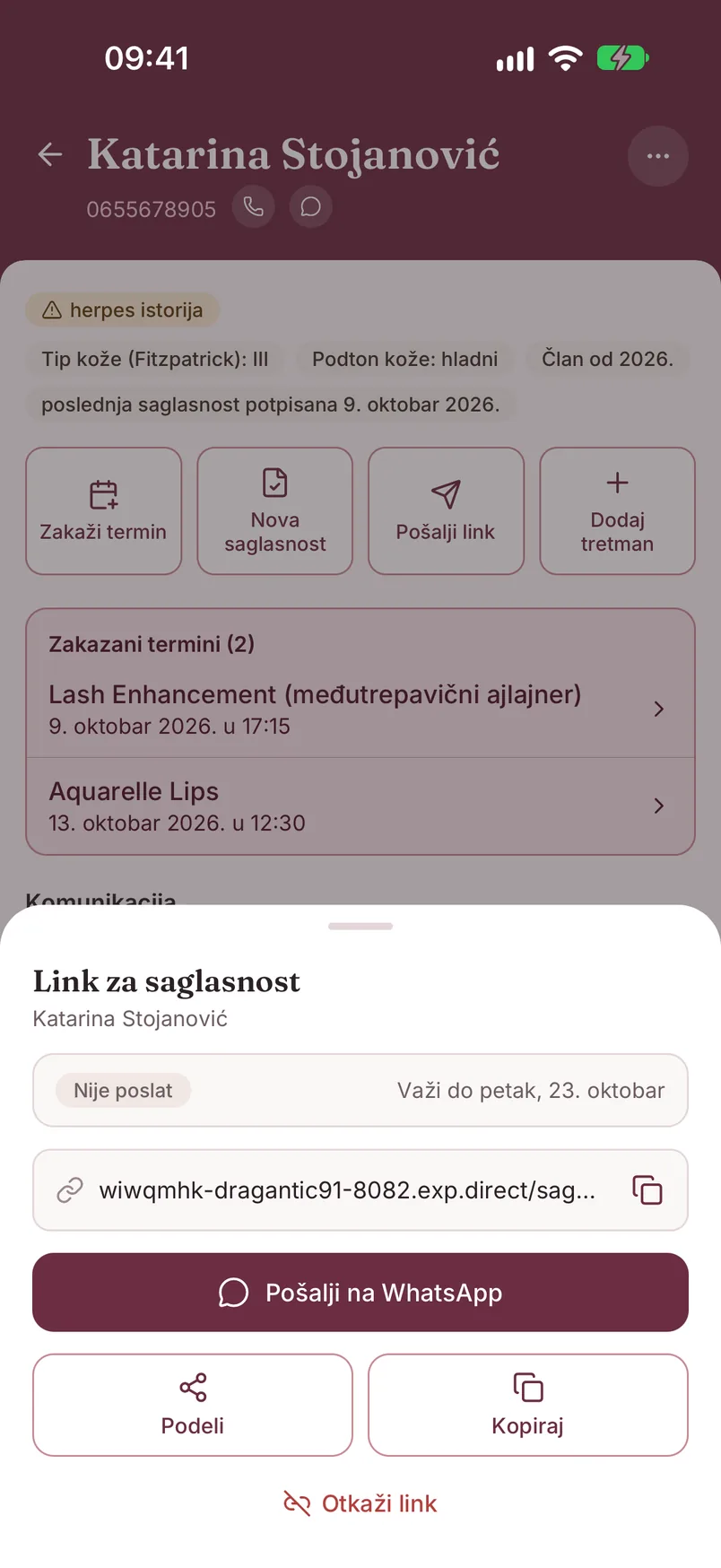
Kako se šalje. Na kartonu dodirni „Pošalji link", ili u detaljima termina „Pošalji link klijentkinji". Otvara se prozor „Link za saglasnost":
- „Pošalji na WhatsApp" - otvara WhatsApp sa već napisanom porukom i linkom; ti samo pošalješ
- „Podeli" - sistemski meni telefona (Viber, SMS, bilo koja aplikacija)
- „Kopiraj" - kopira link
- „Email" - ako klijentkinja ima email na kartonu
- „Otkaži link" - link odmah prestaje da važi; uvek možeš da pošalješ nov
Na vrhu prozora je status - „Nije poslat", „Čeka potpis" ili „Otvoreno" (klijentkinja je otvorila link) - i do kada link važi.
Koliko link važi. Link poslat sa kartona važi 14 dana. Link vezan za termin važi do 24 sata posle kraja termina i pomera se zajedno sa terminom; ako se termin otkaže, link prestaje da važi. Ako u međuvremenu potpišete saglasnost u salonu, link se sam gasi.
Automatski uz podsetnik. Kad je WhatsApp salona povezan, link za termin stiže klijentkinji i sam, uz WhatsApp podsetnik dan pre termina - ako saglasnost do tada nije potpisana. Ako je termin za manje od 24 sata, podsetnik ne ide i link šalješ ručno. Videti Povezivanje WhatsApp broja.
Šta vidi klijentkinja. Stranicu sa nazivom tvog salona i terminom, potvrdu „Potvrđujem da sam ja [ime] i da ovaj dokument popunjavam lično", pa ista četiri dela kao u salonu: zdravstveni upitnik, informacije o tretmanu, saglasnosti i potpis prstom. Popunjavanje traje oko dva minuta, a završava se dugmetom „Potpiši i pošalji".
Šta vidiš ti. Čim klijentkinja potpiše, stiže ti obaveštenje „Saglasnost potpisana". Saglasnost je na listi i na kartonu, potpuno ista kao da je potpisana u salonu - sa PDF-om, deljenjem i povezivanjem sa tretmanom.
Na besplatnom planu dugme „Pošalji link" otvara ponudu za Pro. Potpisivanje u salonu, na tvom telefonu, dostupno je na svim planovima.
Gde vidiš status saglasnosti
- Tab „Saglasnosti" - sve saglasnosti salona od najnovije, sa oznakom „Potpisano" ili „Na čekanju"; lupa u zaglavlju pretražuje po imenu klijentkinje
- Karton - oznaka pri vrhu: „poslednja saglasnost potpisana [datum]", „poslednja saglasnost nije potpisana" ili „nema nijedne saglasnosti"; u delu „Istorija" je svaka saglasnost posebno
- Ekran „Danas" - na kartici termina piše „Saglasnost nedostaje" dok je ne potpišete
- Detalji tretmana - „Potpisana" ili „bez saglasnosti"
- Statistika (Pro) - u delu „Za tvoju pažnju" stoji broj tretmana bez potpisane saglasnosti, sa listom iz koje ih odmah rešavaš
Saglasnost nema rok važenja. Za svaki novi tretman možeš da potpišeš novu - ranije ostaju sačuvane u istoriji, a karton uvek prikazuje status poslednje.
Starting a new consent
You start a new consent from wherever you already are:
- the client card - the "New consent" button
- the "Consents" tab - the plus button in the bottom right corner
- the "Today" screen - "Start consent" on an appointment card, or the "Consent" button at the bottom for a client without an appointment
- the treatment form and treatment details - "+ New consent"
A 5-step guide opens, with "Back" and "Next" buttons at the bottom. This is usually the moment you hand the phone to the client - the questions are addressed to her.
In the first step you select the client (search by name or phone; if she is not there, "Client not on the list?" > "Add new" opens a card on the spot) and, optionally, a treatment and an appointment. When you start the consent from a client card or an appointment, these are already filled in.
Health questionnaire
The second step is a set of Yes / No questions:
- Are you pregnant or breastfeeding?
- Do you have diabetes?
- Are you taking blood-thinning medication?
- Are you prone to keloid scarring?
- Have you had herpes in the treatment area?
- Are you allergic to pigments or anesthetics?
- Skin conditions in the treatment area?
- Currently taking medications?
- Previous PMU done elsewhere?
If the client already has an earlier consent, the answers are prefilled with the note "Prefilled from a previous visit - please review the answers." Go through them with her before you continue.
Every "Yes" answer later shows at the top of the client card as a yellow warning label (e.g. "herpes history"), so it is in front of you before the next treatment.
Information and consents
The third step, "Information", shows two texts: "Pre-treatment preparation" and "Required instructions" (risks, aftercare, follow-up check). At the bottom is the "I have read and understand" checkbox - until it is ticked, the "Next" button stays disabled.
The fourth step, "Consents", has three statements:
- consent to the treatment and awareness of the possible risks
- confirmation that the health information provided is accurate and complete
- consent to treatment photos being used for promotional purposes - optional
Signature
In the last step the client signs with her finger directly on your phone's screen. "Clear signature" empties the field if she wants to try again. The signature date and time are recorded automatically.
Tap "Save and sign". If the field is empty, the app says "Signature is required".
After saving you choose what comes next: "Record treatment" (the consent is linked to that treatment automatically), "View PDF", "Send to client by email" or "Done".
PDF preview and sharing
Every signed consent becomes a PDF document with your salon's name, the client's details, the questionnaire answers, the text she read, the statements and the signature.
When you open a consent from the list or from the client card, you have:
- "Preview PDF" - shows the document inside the app
- "Share / Download" - the phone's system menu (save to files, Viber, WhatsApp, print...)
- "Send by email" - the PDF goes to the email address on the client's card, with a confirmation before sending. If no email is on file, the app points you to add one on the card
From the same screen you can link the consent to a treatment ("Link to treatment…") or log a new one right away ("Log a treatment").
Remote signing Pro
A client can fill in and sign the consent on her own phone, before she comes to the salon. You send her a link and she opens it in a browser - no app to install and no account.
How to send it. On the client card tap "Send link", or in the appointment details "Send link to client". The "Consent link" sheet opens:
- "Send on WhatsApp" - opens WhatsApp with the message and link already written; you just send it
- "Share" - the phone's system menu (Viber, SMS, any app)
- "Copy" - copies the link
- "Email" - if the client has an email on her card
- "Cancel link" - the link stops working immediately; you can always send a new one
At the top of the sheet is the status - "Not sent", "Awaiting signature" or "Opened" (the client has opened the link) - and how long the link is valid.
How long the link is valid. A link sent from the client card is valid for 14 days. A link tied to an appointment is valid until 24 hours after the appointment ends and moves together with the appointment; if the appointment is cancelled, the link stops working. If you sign the consent in the salon in the meantime, the link is closed automatically.
Automatically with the reminder. When the salon's WhatsApp is connected, the link for an appointment also reaches the client by itself, with the WhatsApp reminder the day before - if the consent has not been signed by then. If the appointment is less than 24 hours away, no reminder goes out and you send the link manually. See Connecting your WhatsApp number.
What the client sees. A page with your salon's name and the appointment, the confirmation "I confirm that I am [name] and that I am filling in this document myself", and then the same four parts as in the salon: health questionnaire, treatment information, consents and a finger signature. It takes about two minutes and ends with the "Sign and send" button.
What you see. As soon as the client signs, you get a "Consent signed" notification. The consent is on the list and on the client card, exactly as if it had been signed in the salon - with the PDF, sharing and linking to a treatment.
On the free plan the "Send link" button opens the Pro offer. Signing in the salon, on your phone, is available on all plans.
Where you see the consent status
- The "Consents" tab - all of the salon's consents, newest first, labelled "Signed" or "Pending"; the magnifier in the header searches by client name
- Client card - a label near the top: "latest consent signed [date]", "latest consent not signed" or "no consents yet"; each consent is listed separately under "History"
- The "Today" screen - the appointment card says "Consent missing" until it is signed
- Treatment details - "Signed" or "no consent"
- Statistics (Pro) - the "Needs your attention" block shows the number of treatments without a signed consent, with a list where you can resolve them right away
A consent has no expiry date. You can sign a new one for every new treatment - earlier ones stay saved in the history, and the client card always shows the status of the latest.