
Saglasnosti
Consent Forms
Digitalni consent formulari, potpisivanje na telefonu, PDF pregled.
Digital consent forms, signing on the phone, PDF preview.
Pokretanje nove saglasnosti
Novu saglasnost pokrećeš dugmetom „Nova saglasnost" — na kartonu klijenta, na listi Saglasnosti (+ dugme), ili direktno iz tretmana/termina koji već imaš otvoren. Otvara se čarobnjak u 5 koraka, sa dugmadima „Nazad" / „Dalje" pri dnu.
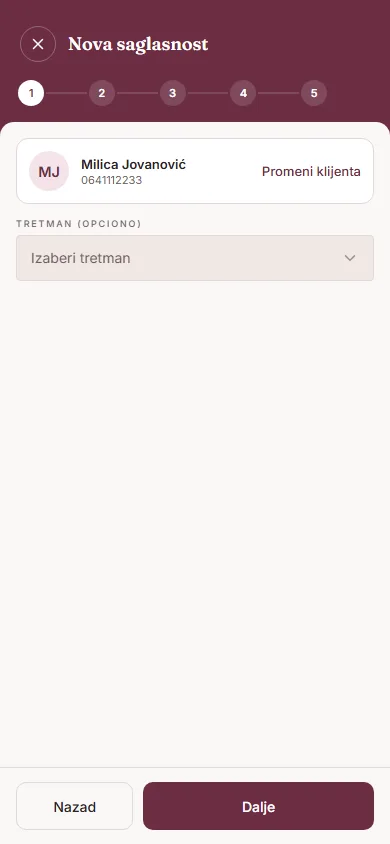
Prvi korak, „Klijent i tretman", traži da izabereš klijenta (ili napraviš novog direktno tu) i, opciono, povežeš tretman i termin.
Zdravstveni upitnik
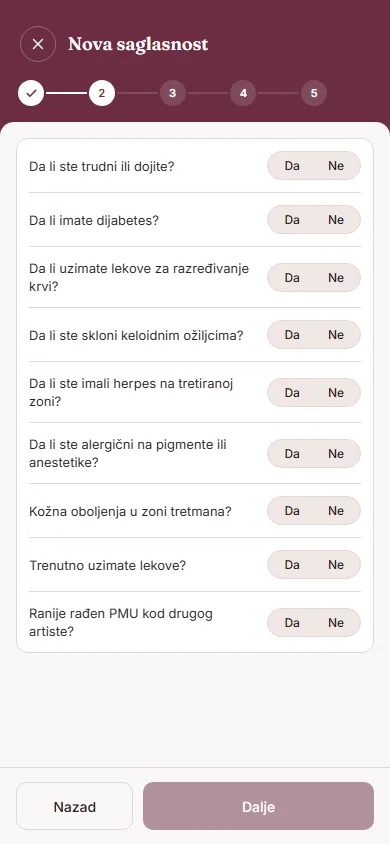
Drugi korak, „Zdravstveni upitnik", sadrži pitanja sa odgovorom da/ne:
- Da li ste trudni ili dojite?
- Da li imate dijabetes?
- Da li uzimate lekove za razređivanje krvi?
- Da li ste skloni keloidnim ožiljcima?
- Da li ste imali herpes na tretiranoj zoni?
- Da li ste alergični na pigmente ili anestetike?
- Kožna oboljenja u zoni tretmana?
- Trenutno uzimate lekove?
- Ranije rađen PMU kod drugog artiste?
Ako klijent već ima raniju saglasnost, odgovori se unapred popune uz napomenu „Popunjeno na osnovu prošle posete — proveri odgovore." — svakako ih proveri sa klijentom pre potvrde.
Informisanost i saglasnosti
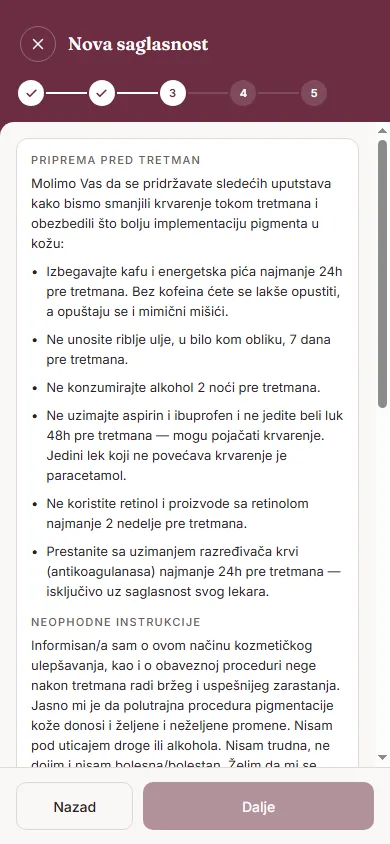
Treći korak, „Informisanost", prikazuje pripremu pred tretman i neophodne instrukcije o riziku, uz potvrdu „Pročitao/la sam i razumem".
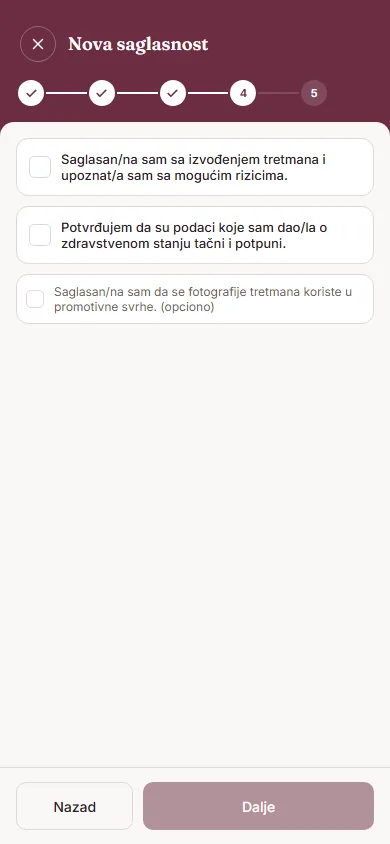
Četvrti korak, „Saglasnosti", ima tri polja za potvrdu: saglasnost sa izvođenjem tretmana i rizicima (obavezno), potvrdu tačnosti unetih zdravstvenih podataka (obavezno), i opcionu saglasnost za korišćenje fotografija u promotivne svrhe.
Potpis
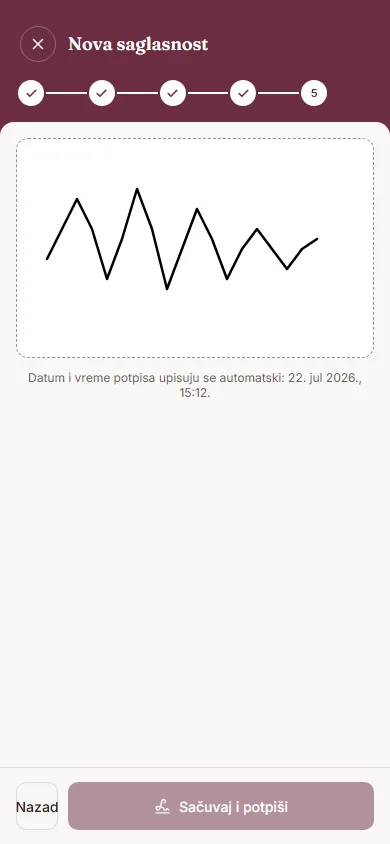
Poslednji korak, „Potpis", klijent potpisuje prstom direktno na ekranu telefona (polje sa tekstom „Potpiši prstom"). Datum i vreme potpisa se automatski beleže. Dodirni „Sačuvaj i potpiši" da završiš — ako je potpis prekratak, aplikacija javlja „Potpis je obavezan".
PDF pregled i deljenje
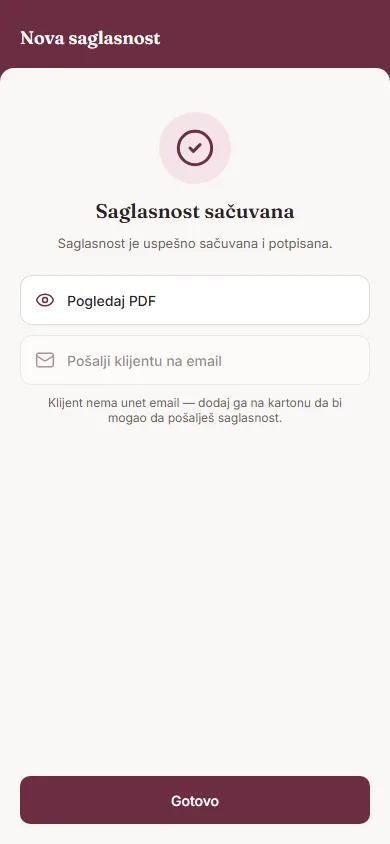
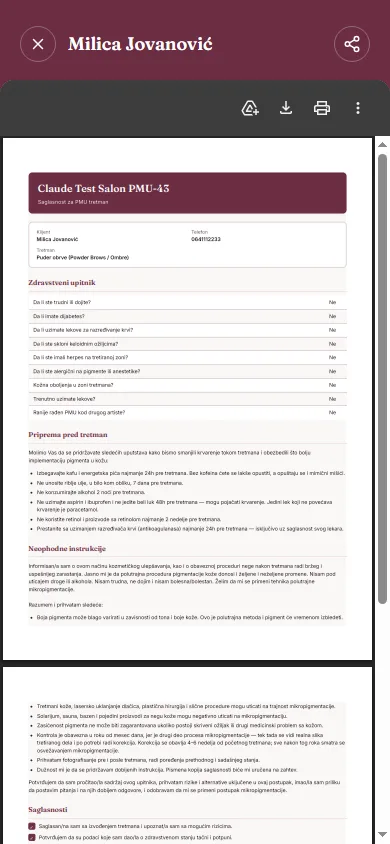
Odmah nakon čuvanja nudi se „Pogledaj PDF" i, ako klijent ima unet email, „Pošalji klijentu na email". Istu saglasnost kasnije možeš ponovo otvoriti i sa nje pokrenuti „Pregledaj PDF", „Podeli / Preuzmi" (otvara sistemski meni za deljenje) ili „Pošalji na email".
Gde vidiš status saglasnosti
Na listi Saglasnosti svaka stavka ima oznaku „Potpisano" ili „Na čekanju". Na kartonu klijenta status se vidi kao „saglasnost potpisana [datum]" / „saglasnost nije potpisana", a u istoriji kao „potpisana digitalno" / „nije potpisana". Saglasnosti ne ističu — nema roka za obnavljanje.
Starting a new consent
Start a new consent with the "New consent" button — from a client's card, from the Consents list (+ button), or directly from a treatment/appointment you already have open. A 5-step wizard opens, with "Back" / "Next" buttons at the bottom.
The first step, "Client and treatment", asks you to select a client (or create a new one on the spot) and, optionally, link a treatment and an appointment.
Health questionnaire
The second step, "Health questionnaire", contains yes/no questions:
- Are you pregnant or breastfeeding?
- Do you have diabetes?
- Are you taking blood-thinning medication?
- Are you prone to keloid scarring?
- Have you had herpes in the treatment area?
- Are you allergic to pigments or anesthetics?
- Skin conditions in the treatment area?
- Currently taking medications?
- Previous PMU done elsewhere?
If the client already has an earlier consent, the answers are pre-filled with a note: "Prefilled from a previous visit — please review the answers." — always double-check them with the client before confirming.
Information and consents
The third step, "Information", shows pre-treatment preparation and required risk instructions, with a confirmation checkbox "I have read and understand".
The fourth step, "Consents", has three checkboxes: consent to the treatment and awareness of risks (required), confirmation that the health information provided is accurate (required), and an optional consent to use treatment photos for promotional purposes.
Signature
In the last step, "Signature", the client signs with their finger directly on the phone screen (a box with the text "Sign with your finger"). The date and time of the signature are recorded automatically. Tap "Save and sign" to finish — if the signature is too short, the app shows "Signature is required".
PDF preview and sharing
Right after saving, you're offered "View PDF" and, if the client has an email on file, "Send to client by email". You can reopen the same consent later and, from there, use "Preview PDF", "Share / Download" (opens the system share sheet) or "Send by email".
Where you see consent status
On the Consents list, every entry has a "Signed" or "Pending" badge. On a client's card, status shows as "consent signed [date]" / "consent not signed", and in the history as "signed digitally" / "not signed". Consents don't expire — there's no renewal deadline.