
Prvi koraci
Getting Started
Registracija, verifikacija emaila, podešavanje profila i salona, dodavanje usluga, izbor jezika aplikacije.
Registration, email verification, profile and salon setup, adding services, choosing the app language.
Registracija naloga
Na početnom ekranu dodirni „Kreiraj nalog". Formular je jedan ekran, bez više koraka:
- Ime i Prezime
- Naziv salona — opciono (ako ga ostaviš prazno, klijenti i zaposleni vide tvoje ime i prezime)
- Lozinka
Registracijom prihvataš Uslove korišćenja i Politiku privatnosti. Dodirni „Završi registraciju".
Umesto emaila i lozinke, možeš se registrovati i preko dugmeta „Nastavi sa Google/Apple" na ekranu za prijavu — tada samo dovršavaš profil (bez lozinke, email je već potvrđen).
Ako te je vlasnik salona pozvao kao zaposlenog/zaposlenu (artist), ne registruješ se na ovaj način — koristiš link iz mejla poziva, koji te odmah vodi na ekran „Pridružuješ se: [naziv salona]" sa poljima Ime, Prezime i Lozinka i dugmetom „Pridruži se".
Potvrda email adrese — obavezan korak
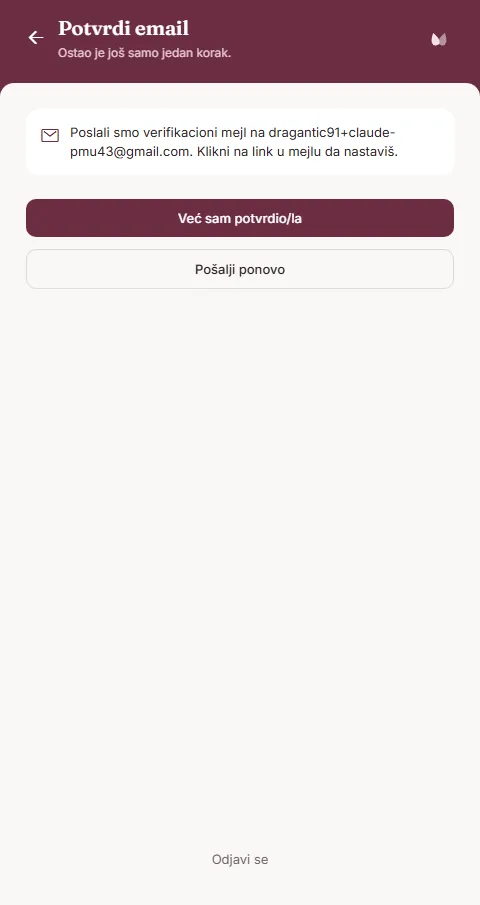
Nakon registracije stiže ekran „Potvrdi email": „Poslali smo verifikacioni mejl na tvoju adresu. Klikni na link u mejlu da nastaviš."
Ovo je tvrda barijera — dok ne potvrdiš email preko linka iz mejla, ne možeš dalje u aplikaciju (ne važi za Google/Apple nalog, koji već ima potvrđen email). Kad klikneš link u mejlu, vrati se u aplikaciju i dodirni „Već sam potvrdio/la".
Ako mejl nije stigao, dodirni „Pošalji ponovo" (dugme se ponovo aktivira 60 sekundi nakon prethodnog slanja). Ako želiš da odustaneš od registracije u međuvremenu, na dnu ekrana je „Odjavi se".
Profil i salon
Svoj lični profil menjaš preko menija → „Izmeni profil": fotografija, ime, prezime, email i kratka biografija (do 160 karaktera). Sačuvaj preko „Sačuvaj izmene".
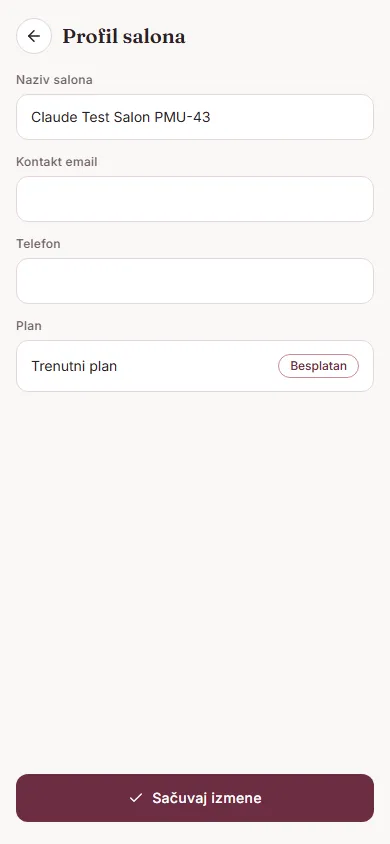
Podaci o salonu (naziv, kontakt email, telefon i pregled plana) menjaju se preko Podešavanja → „Profil salona". Ako si zaposlena/zaposleni u salonu, a ne vlasnik/vlasnica, ova polja vidiš, ali ne možeš da ih menjaš.
Usluge — preduslov za zakazivanje
Pre nego što zakažeš prvi termin ili zabeležiš tretman, moraš dodati bar jednu uslugu — bez toga zakazivanje nije moguće. Ako polje „Usluga" pri zakazivanju termina otvoriš praznu, aplikacija javlja „Nema definisanih usluga.", a termin se ne može sačuvati (usluga je obavezno polje).
U Podešavanjima → „Vrste tretmana" dodaješ sopstvenu uslugu dugmetom „+" (naziv, trajanje, cena, boja...), ili čekiraš gotovu stavku iz zajedničkog kataloga ispod, grupisanog po kategorijama: Obrve, Usne, Oči, Medicinski, Ostalo. Detaljnije o poljima usluge na stranici Tretmani.
Jezik aplikacije
Jezik biraš preko menija → „Jezik", između opcija Srpski i English.
Svetla ili tamna tema nemaju poseban prekidač unutar aplikacije — aplikacija prati podešavanje teme na tvom telefonu.
Creating an account
On the welcome screen, tap "Create Account". It's a single-screen form, no multi-step wizard:
- First Name and Last Name
- Salon Name — optional (if left blank, clients and staff will see your first and last name)
- Password
By registering you accept the Terms of Use and Privacy Policy. Tap "Complete Registration".
Instead of email and password, you can also sign up with the "or continue with" Google/Apple option on the sign-in screen — you'll only need to complete your profile (no password, and your email is already verified).
If a salon owner invited you as staff, you don't register this way — you use the link from the invite email, which takes you straight to a "Join the team" screen ("You're joining: [salon name]") with First Name, Last Name and Password fields and a "Join" button.
Verifying your email — a required step
After registering you land on "Verify your email": "We sent a verification email to your address. Click the link in the email to continue."
This is a hard gate — until you verify your email via the link, you can't get into the app (this doesn't apply to Google/Apple accounts, whose email is already verified). Once you've clicked the link, come back to the app and tap "I've already confirmed".
If the email hasn't arrived, tap "Resend" (it re-enables 60 seconds after the previous send). If you want to abandon registration in the meantime, there's a "Sign out" link at the bottom of the screen.
Profile and salon
Edit your personal profile from the menu → "Edit Profile": photo, first name, last name, email and a short bio (up to 160 characters). Save with "Save Changes".
Salon details (name, contact email, phone, and plan overview) are edited from Settings → "Salon profile". If you're staff at a salon rather than the owner, you can see these fields but not change them.
Services — a prerequisite for scheduling
Before you can schedule your first appointment or log a treatment, you need to add at least one service — without it, scheduling isn't possible. If you open the "Service" field while scheduling an appointment and it's empty, the app shows "No services defined." and the appointment can't be saved (service is a required field).
In Settings → "Treatment types" you add your own service with the "+" button (name, duration, price, color...), or check off a ready-made item from the shared catalog below, grouped by category: Brows, Lips, Eyes, Medical, Other. More on service fields on the Treatments page.
App language
Choose your language from the menu → "Language", between Srpski and English.
Light or dark theme has no dedicated switch inside the app — it follows your phone's theme setting.