
Prvi koraci
Getting Started
Registracija, verifikacija emaila, podešavanje profila i salona, dodavanje usluga, izbor jezika aplikacije.
Registration, email verification, profile and salon setup, adding services, choosing the app language.
Ažurirano za verziju 1.7.0 - oktobar 2026
Updated for version 1.7.0 - October 2026
Registracija naloga
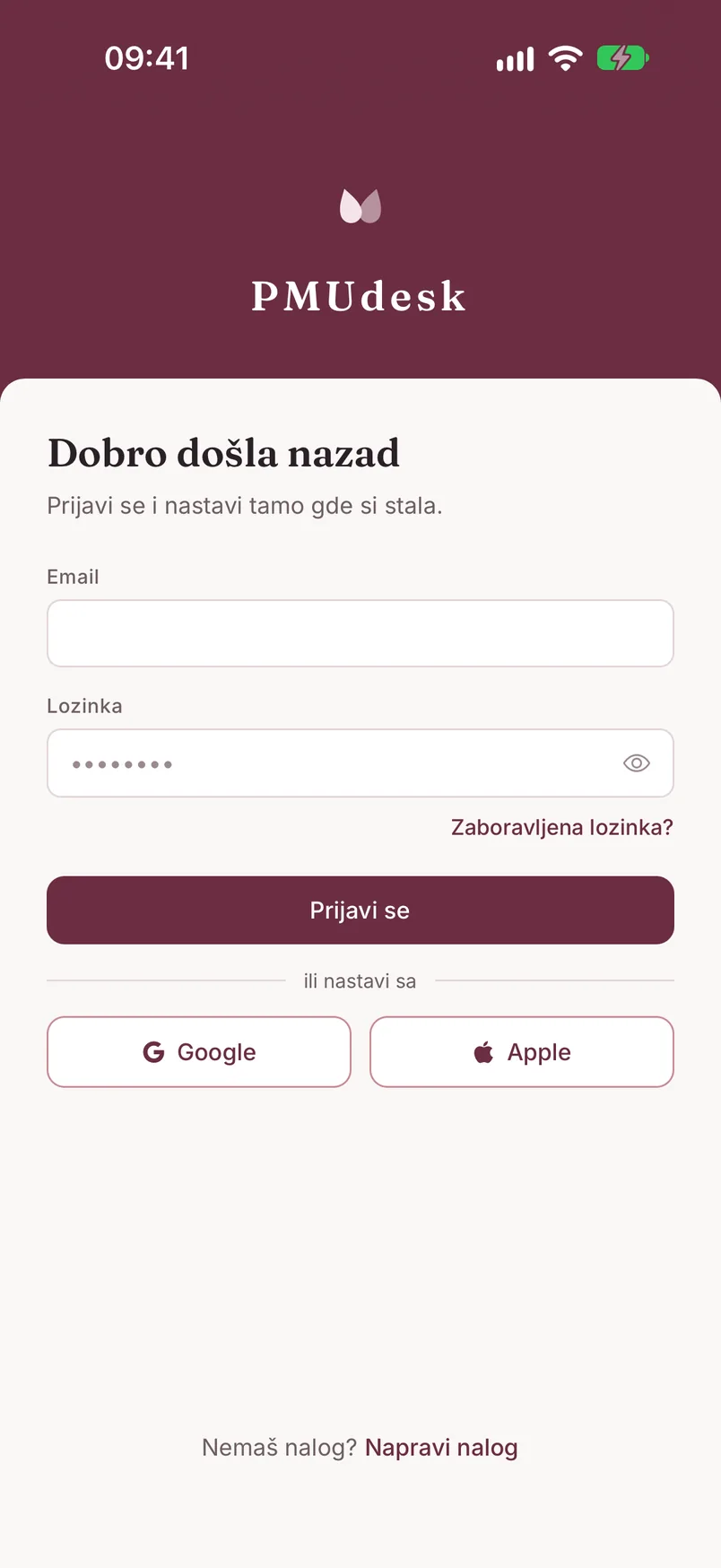
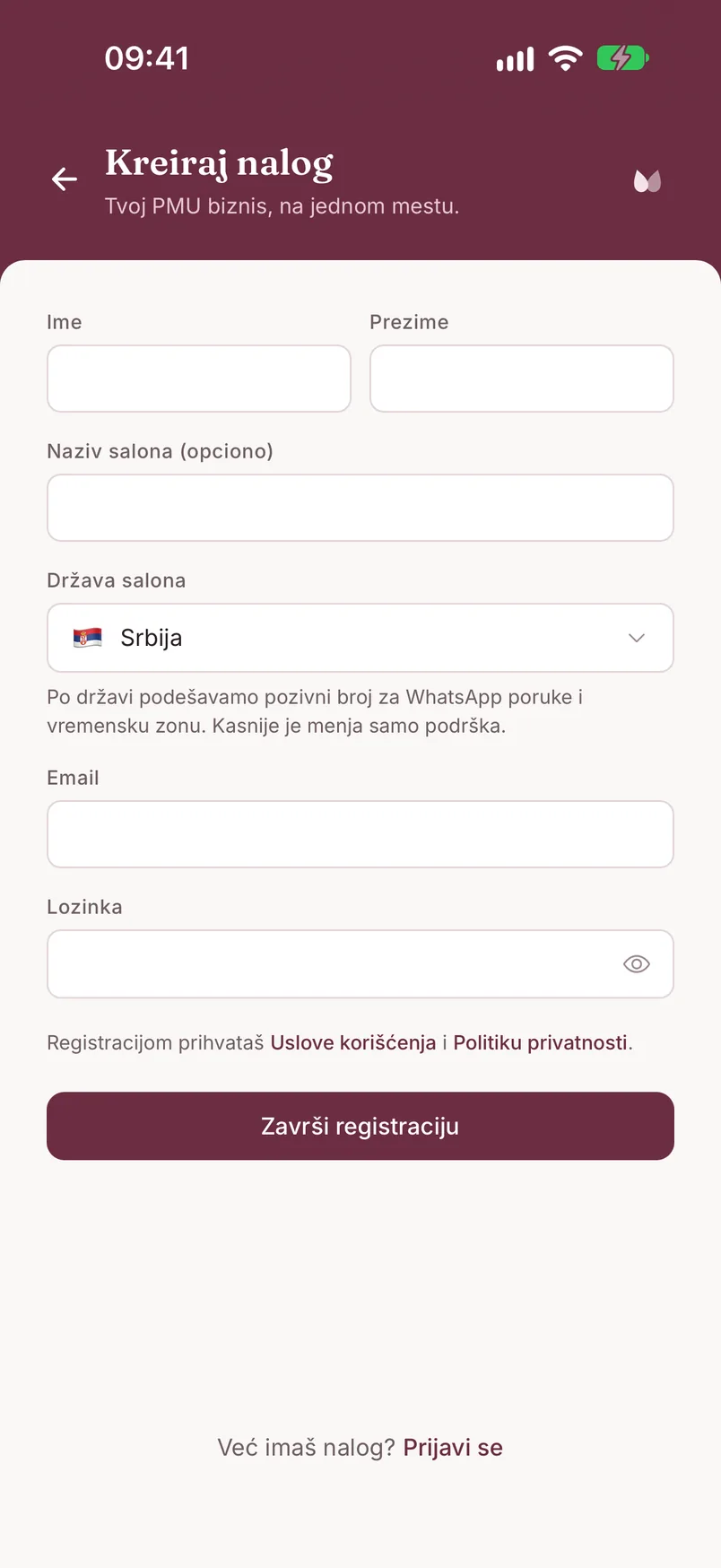
Na ekranu za prijavu dodirni „Napravi nalog" (na dnu, pored „Nemaš nalog?"). Otvara se formular „Kreiraj nalog" - jedan ekran, bez više koraka:
- Ime i Prezime
- Naziv salona - opciono (ako ga ostaviš prazno, klijenti i zaposleni vide tvoje ime i prezime)
- Država salona - po državi se podešavaju pozivni broj za WhatsApp poruke i vremenska zona; kasnije je menja samo podrška, pa je izaberi pažljivo
- Lozinka
Registracijom prihvataš Uslove korišćenja i Politiku privatnosti. Dodirni „Završi registraciju".
Umesto emaila i lozinke možeš da nastaviš preko dugmadi „Google" ili „Apple" ispod teksta „ili nastavi sa" na ekranu za prijavu (Apple dugme postoji samo na iPhone-u). Tada samo dovršavaš isti formular - bez lozinke, a email dolazi sa Google ili Apple naloga i ne potvrđuješ ga posebno.
Ako te je vlasnica salona pozvala kao zaposlenu (artist), ne registruješ se na ovaj način - koristiš link iz mejla poziva, koji te vodi na ekran „Pridruži se timu" („Pridružuješ se: [naziv salona]") sa poljima Ime, Prezime i Lozinka i dugmetom „Pridruži se".
Potvrda email adrese - obavezan korak
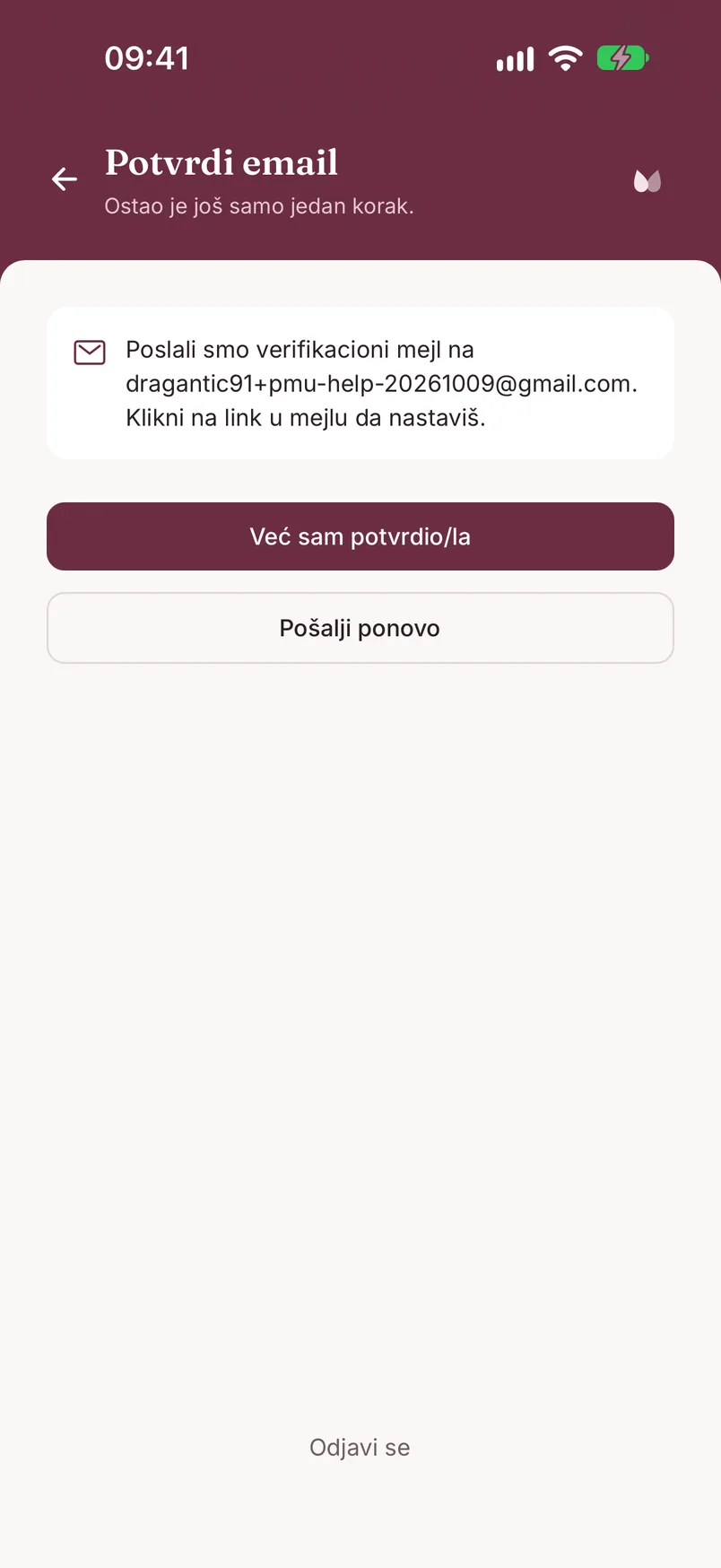
Nakon registracije emailom i lozinkom stiže ekran „Potvrdi email": „Poslali smo verifikacioni mejl na [tvoja adresa]. Klikni na link u mejlu da nastaviš."
Dok ne potvrdiš email preko linka iz mejla, ne možeš dalje u aplikaciju (ne važi za Google i Apple naloge). Kad klikneš link u mejlu, vrati se u aplikaciju i dodirni „Već sam potvrdio/la".
Ako mejl nije stigao, proveri neželjenu poštu, pa dodirni „Pošalji ponovo" (dugme se ponovo aktivira 60 sekundi nakon prethodnog slanja). Ako želiš da odustaneš ili da se prijaviš drugim nalogom, na dnu ekrana je „Odjavi se".
Profil i salon
Podešavanja otvaraš ikonicom zupčanika u gornjem desnom uglu ekrana „Danas".
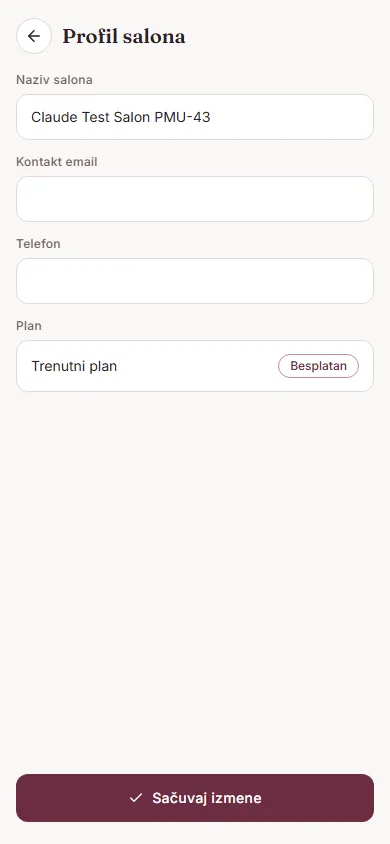
U Podešavanjima → „Profil salona" su podaci o salonu:
- Naziv salona, Kontakt email i Telefon
- Adresa - unesi je ako planiraš WhatsApp potvrde i podsetnike termina; adresa je deo tih poruka i bez nje one čekaju
- PIB i Matični broj
- Web sajt i Instagram
- Valuta - valuta u kojoj vodiš cene usluga i tretmana; menja je samo vlasnica salona, a iznosi se pri promeni ne preračunavaju, pa posle promene ažuriraj cene u Vrstama tretmana
- Region (država, pozivni broj, vremenska zona) - samo za pregled; za promenu se javi podršci
- Plan - trenutni plan salona
Sačuvaj dugmetom „Sačuvaj izmene". Ako si zaposlena u salonu (artist), ova polja vidiš, ali ne možeš da ih menjaš.
Svoj lični profil menjaš u Podešavanjima → „Lični profil": fotografija, ime, prezime, email i kratka biografija (do 160 karaktera). Više o nalogu na stranici Nalog.
Usluge - preduslov za zakazivanje
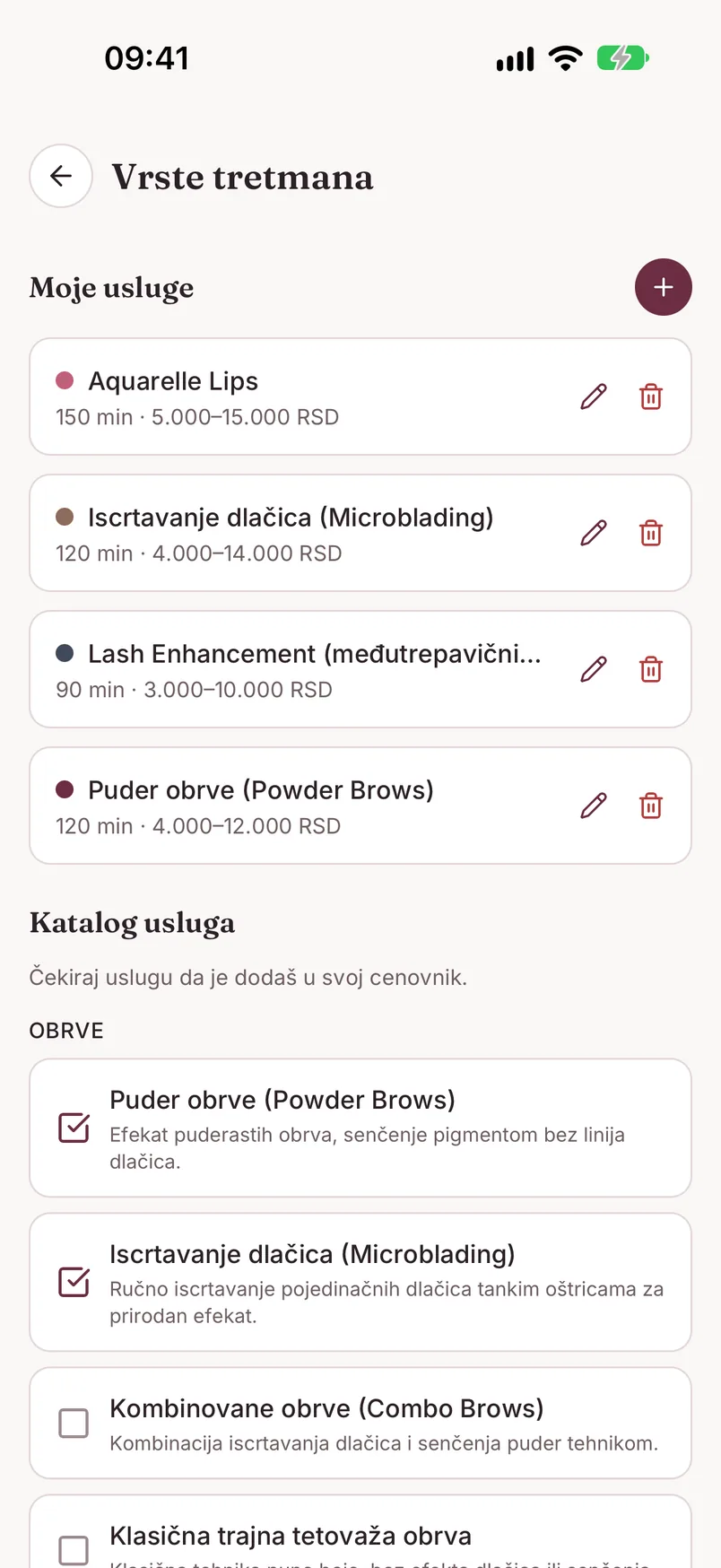
Pre nego što zakažeš prvi termin, dodaj bar jednu uslugu - usluga je obavezno polje pri zakazivanju. Usluge su u Podešavanjima → „Vrste tretmana", a ekran ima dva dela: „Moje usluge" (tvoj cenovnik) i „Katalog usluga".
Iz kataloga. Katalog je grupisan po zonama: Obrve, Usne, Oči, Medicinski, Ostalo. Čekiraj uslugu i otvara se prozor „Dodaj: [naziv]" - unesi osnovnu cenu (to je cena prvog tretmana; 0 za besplatnu uslugu), trajanje u minutima i po želji boju, pa dodirni „Dodaj". Usluga se pojavljuje u „Moje usluge".
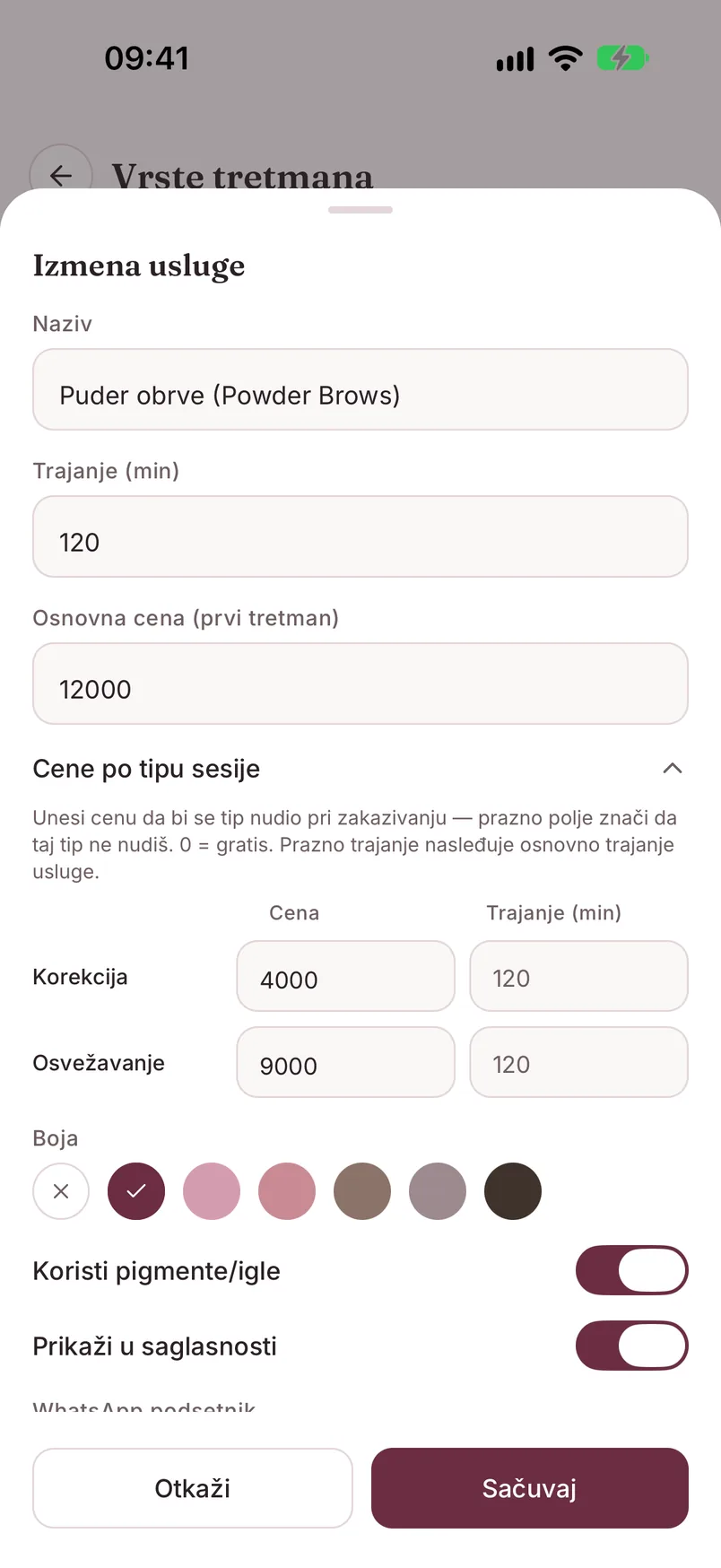
Custom usluga. Ako usluge nema u katalogu, dodirni „+" pored naslova „Moje usluge" i unesi naziv, trajanje i osnovnu cenu. Tu su i prekidači „Koristi pigmente/igle" (tretman vodi pigment formulu) i „Prikaži u saglasnosti" (usluga se nudi pri potpisivanju saglasnosti), kao i izbor „WhatsApp podsetnik": PMU priprema, Opšti ili Bez podsetnika.
Cene po tipu sesije. U svakoj usluzi možeš da otvoriš deo „Cene po tipu sesije" i uneseš posebnu cenu (i trajanje) za Korekciju i Osvežavanje. Prazno polje znači da taj tip ne nudiš, 0 znači gratis, a prazno trajanje preuzima osnovno trajanje usluge.
Zašto je to važno: tek kad usluga ima bar jednu takvu cenu, pri zakazivanju i beleženju tretmana biraš da li je u pitanju Prvi tretman, Korekcija ili Osvežavanje, i aplikacija sama predlaže odgovarajuću cenu. Bez toga izbora nema, pa se svaki PMU tretman beleži kao prvi. Tip tretmana koriste healing poruke (raspored koraka zavisi od tipa) i Statistika (odnos prvih tretmana i korekcija).
Boja usluge je boja termina u kalendaru. Uslugu menjaš olovkom, a uklanjaš kantom - postojeći tretmani i termini ostaju sačuvani, samo usluga više nije dostupna za nove. Usluge dodaju i menjaju vlasnica i menadžer salona; artist ih samo vidi.
Jezik aplikacije
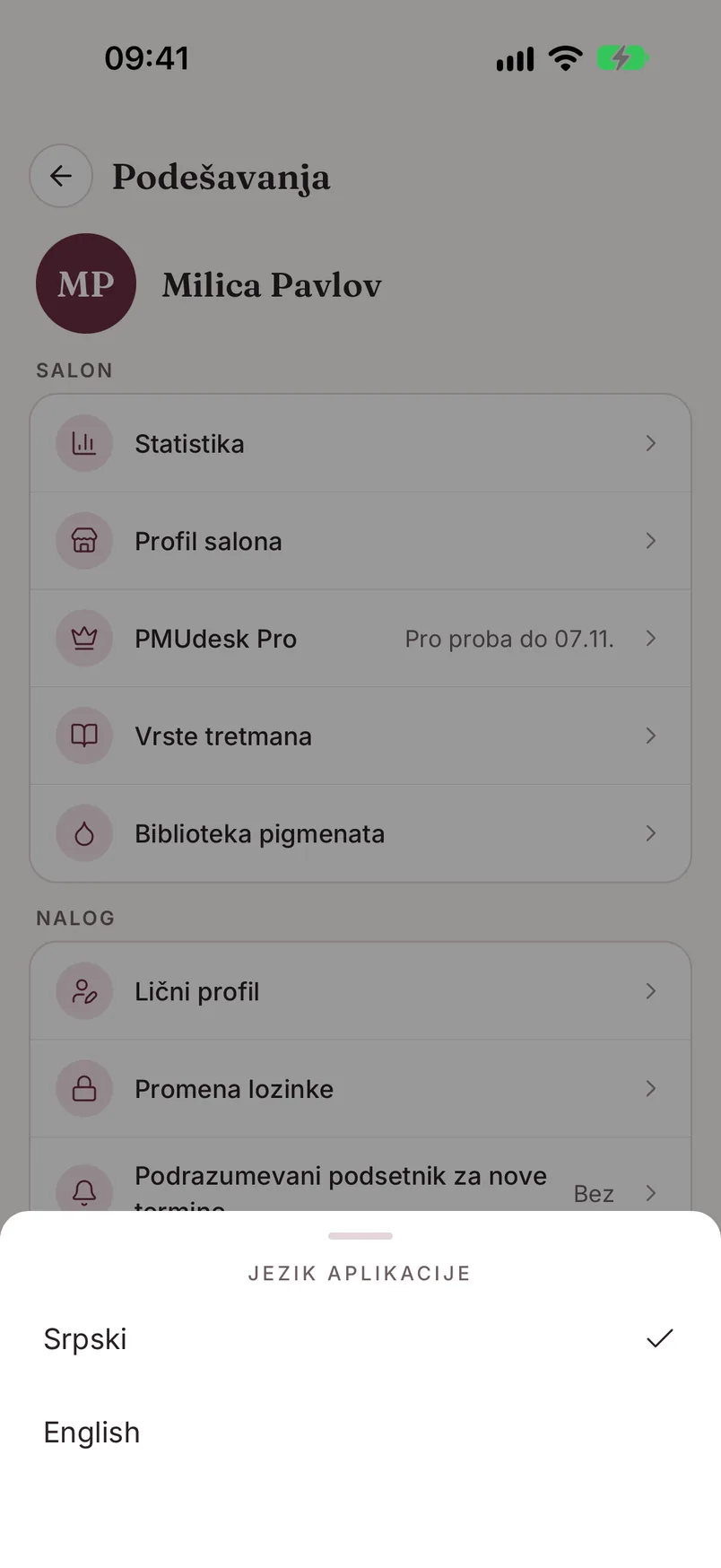
Jezik biraš u Podešavanjima, u delu „Nalog" → „Jezik", između opcija Srpski i English. Promena važi odmah.
Odmah ispod je i „Tema": Sistemska (prati podešavanje telefona), Svetla ili Tamna.
Creating an account
On the sign-in screen, tap "Create account" (at the bottom, next to "Don't have an account?"). The "Create Account" form opens - a single screen, no multi-step wizard:
- First Name and Last Name
- Salon Name - optional (if left blank, clients and staff will see your first and last name)
- Salon country - the country sets the calling code for WhatsApp messages and the time zone; later only support can change it, so pick it carefully
- Password
By registering you accept the Terms of Use and Privacy Policy. Tap "Complete Registration".
Instead of email and password, you can continue with the "Google" or "Apple" buttons under "or continue with" on the sign-in screen (the Apple button is only there on iPhone). You then just complete the same form - no password, and the email comes from your Google or Apple account, with no separate verification.
If a salon owner invited you as staff (artist), you don't register this way - you use the link from the invite email, which takes you to the "Join the team" screen ("You're joining: [salon name]") with First Name, Last Name and Password fields and a "Join" button.
Verifying your email - a required step
After registering with email and password you land on "Verify your email": "We sent a verification email to [your address]. Click the link in the email to continue."
Until you verify your email via the link, you can't get into the app (this doesn't apply to Google and Apple accounts). Once you've clicked the link, come back to the app and tap "I've already confirmed".
If the email hasn't arrived, check your spam folder, then tap "Resend" (it re-enables 60 seconds after the previous send). If you want to give up or sign in with a different account, there's a "Sign out" link at the bottom of the screen.
Profile and salon
Open Settings with the gear icon in the top-right corner of the "Today" screen.
Settings → "Salon profile" holds your salon details:
- Salon name, Contact email and Phone
- Address - fill it in if you plan to use WhatsApp appointment confirmations and reminders; the address is part of those messages and without it they stay on hold
- Tax ID (PIB) and Registration number
- Website and Instagram
- Currency - the currency for your service and treatment prices; only the salon owner can change it, and amounts are not converted when you do, so update your prices in Treatment types afterwards
- Region (country, calling code, time zone) - read-only; contact support to change it
- Plan - the salon's current plan
Save with "Save changes". If you're staff at a salon (artist), you can see these fields but not change them.
Edit your personal profile in Settings → "Personal profile": photo, first name, last name, email and a short bio (up to 160 characters). More about your account on the Account page.
Services - a prerequisite for scheduling
Before you schedule your first appointment, add at least one service - service is a required field when scheduling. Services live in Settings → "Treatment types", and the screen has two parts: "My services" (your price list) and the "Service catalog".
From the catalog. The catalog is grouped by zone: Brows, Lips, Eyes, Medical, Other. Check a service and an "Add: [name]" sheet opens - enter the base price (the price of a first treatment; 0 for a free service), the duration in minutes and optionally a color, then tap "Add". The service shows up under "My services".
Custom service. If a service isn't in the catalog, tap "+" next to the "My services" heading and enter a name, duration and base price. You also get the "Uses pigments/needles" switch (the treatment tracks a pigment formula), the "Show in consent form" switch (the service is offered when signing a consent), and the "WhatsApp reminder" choice: PMU prep, General or No reminder.
Prices per session type. In every service you can open "Prices per session type" and enter a separate price (and duration) for a Touch-up and a Refresh. An empty field means you don't offer that type, 0 means free, and an empty duration inherits the service's base duration.
Why it matters: only once a service has at least one such price do you choose between First treatment, Touch-up and Refresh when scheduling and logging a treatment, with the app suggesting the matching price. Without it there is no choice, so every PMU treatment is logged as a first treatment. The treatment type is used by healing messages (the step schedule depends on the type) and by Statistics (the ratio of first treatments to touch-ups).
The service color is the color of its appointments in the calendar. Edit a service with the pencil and remove it with the trash icon - existing treatments and appointments stay saved, the service just isn't available for new ones. Services are added and edited by the salon owner and manager; an artist can only view them.
App language
Choose your language in Settings, under "Account" → "Language", between Srpski and English. The change applies right away.
Right below it is "Theme": System (follows your phone's setting), Light or Dark.