
Klijenti
Clients
Karton klijenta, kontakt podaci, tip kože, kontraindikacije, pretraga klijenata.
Client records, contact details, skin type, contraindications, search.
Ažurirano za verziju 1.7.0 - oktobar 2026
Updated for version 1.7.0 - October 2026
Dodavanje nove klijentkinje
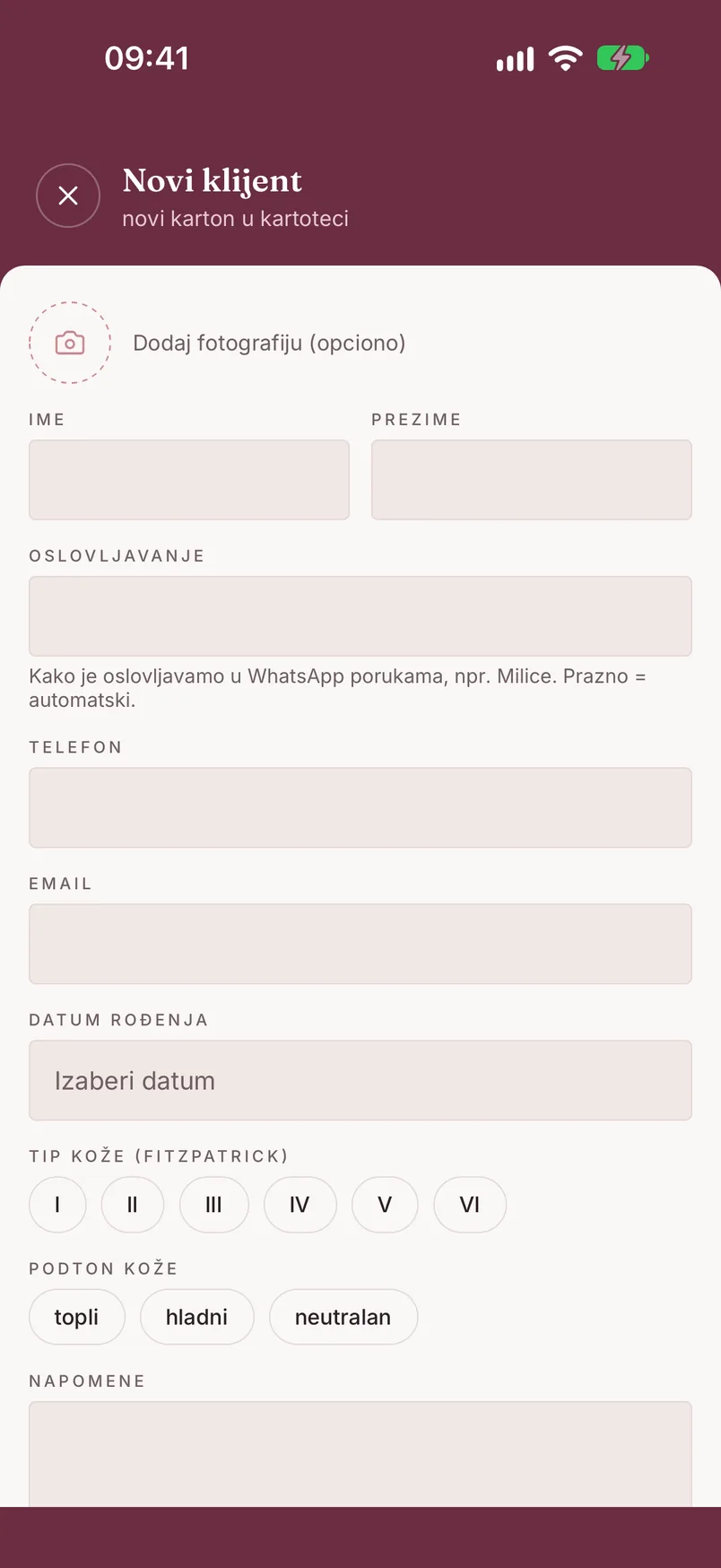
Na tabu „Klijenti" dodirni plus dugme u donjem desnom uglu („Novi klijent"), ili - ako je lista prazna - „Dodaj prvog klijenta".
Redosled polja u formularu:
- Fotografija - opciono
- Ime i Prezime - obavezno
- Oslovljavanje - opciono; kako se klijentkinji obraćamo u WhatsApp porukama (npr. „Milice"). Ako ostaviš prazno, aplikacija oblik određuje sama
- Telefon - obavezno (npr. 0641234567)
- Email - opciono
- Datum rođenja - opciono
- Tip kože (Fitzpatrick) - opciono, bira se od I do VI
- Podton kože - opciono (topli / hladni / neutralan)
- Napomene - opciono
Kad završiš, dodirni „Sačuvaj klijenta".
Kad broj telefona već postoji
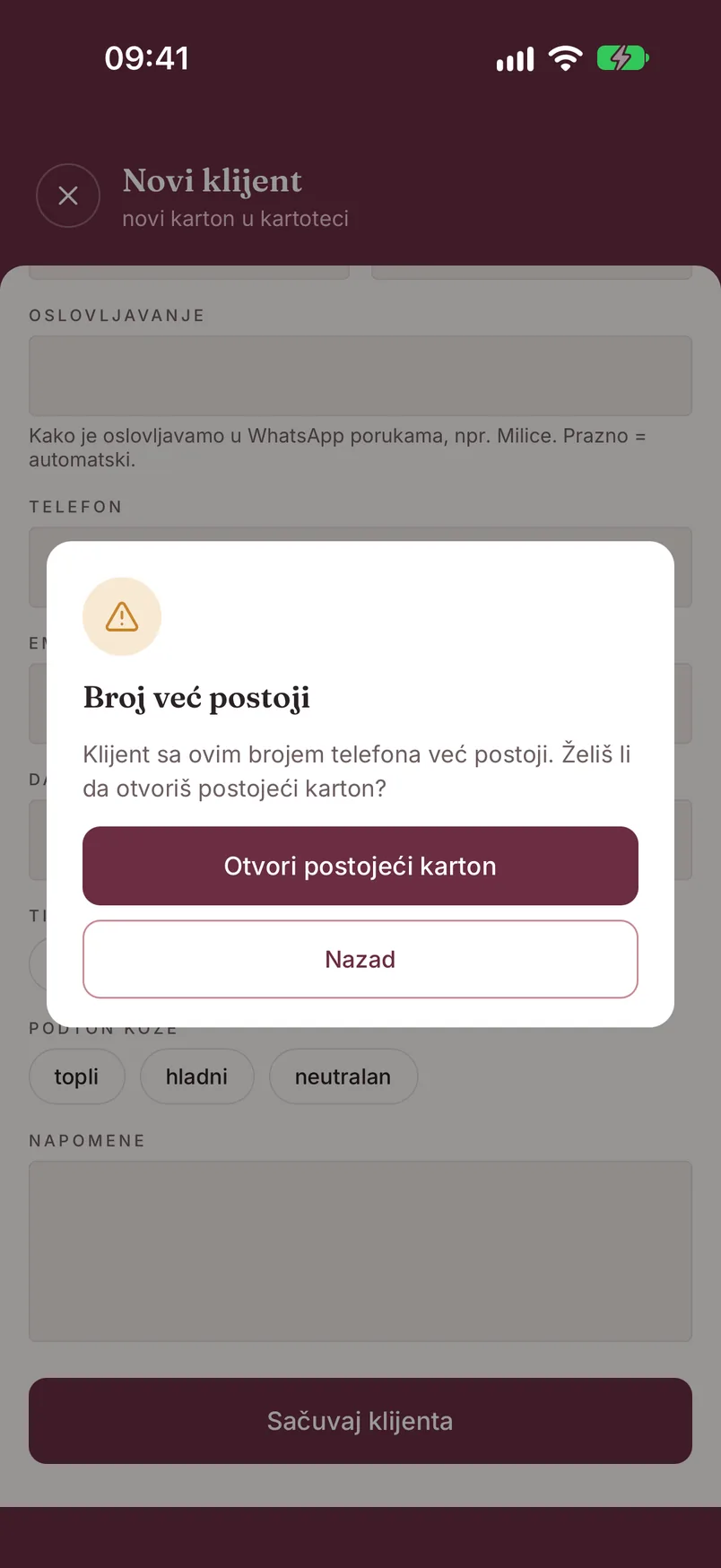
Jedan broj telefona može da ima samo jedan karton. Ako uneseš broj koji već postoji, pri čuvanju se pojavljuje prozor „Broj već postoji" sa dve opcije:
- „Otvori postojeći karton" - vodi te na karton klijentkinje koja već ima taj broj
- „Nazad" - vraća te u formular da ispraviš broj
Ako klijentkinju dodaješ iz formulara za novi termin, prva opcija glasi „Koristi postojećeg klijenta" i postojeći karton se odmah bira za taj termin.
Karton klijentkinje
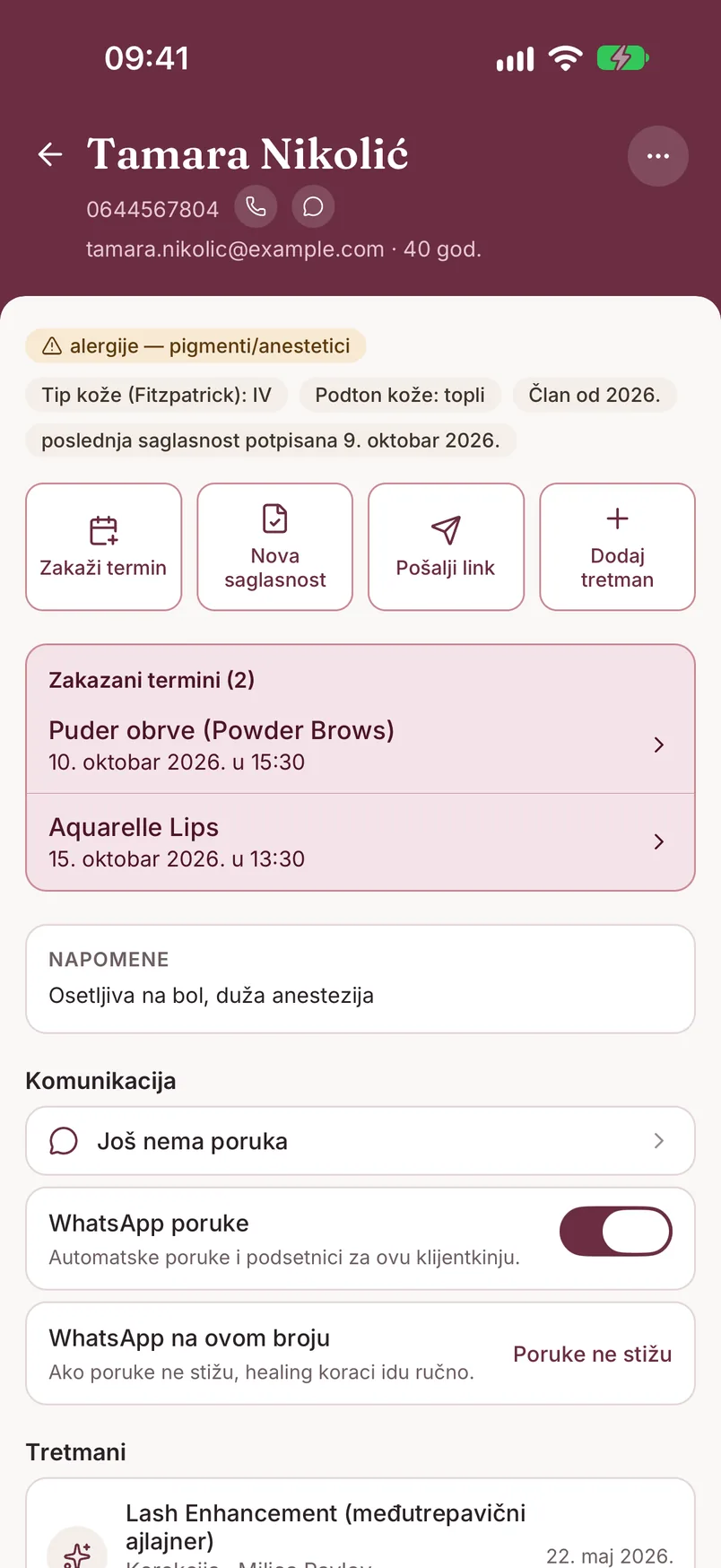
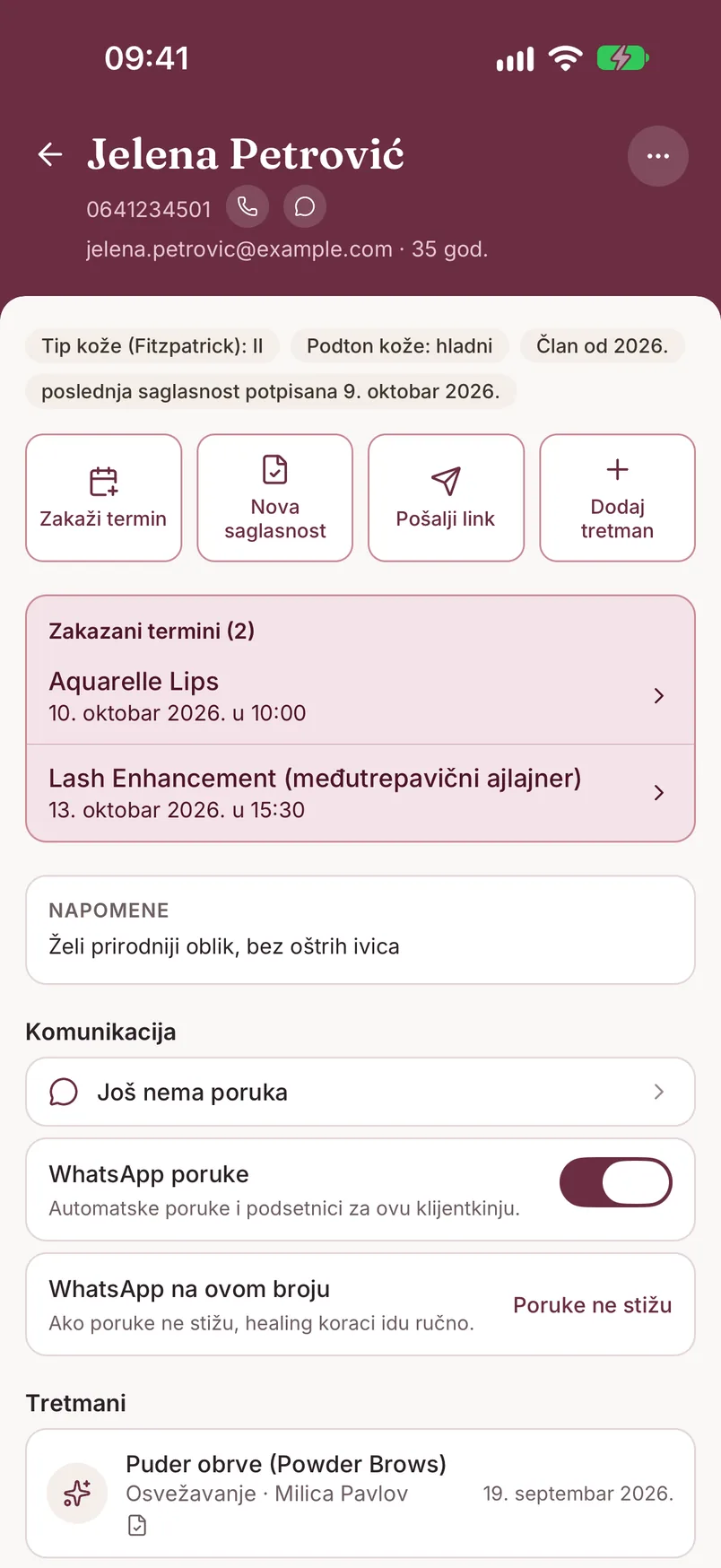
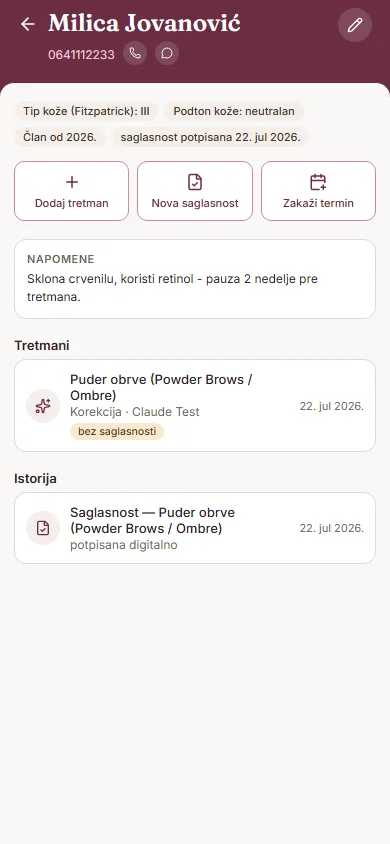
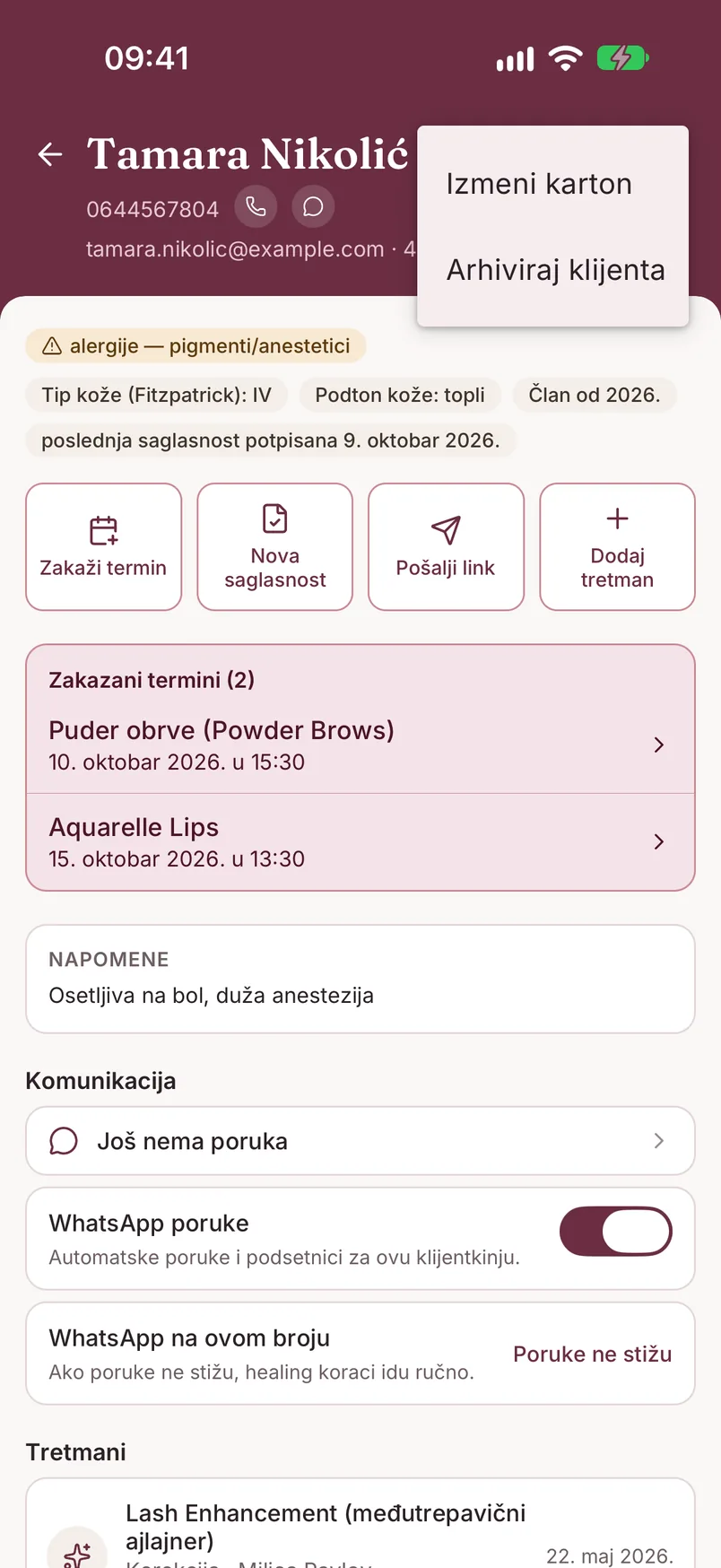
Na vrhu kartona su ime, telefon sa prečicama za brz poziv i WhatsApp poruku, email i godine, a ako si dodala fotografiju, i ona. Dugme ⋯ u gornjem desnom uglu otvara meni sa „Izmeni karton" i „Arhiviraj klijenta".
Ispod su oznake: upozorenja iz saglasnosti (žuta oznaka, npr. „alergije - pigmenti/anestetici"), tip kože, podton, od kada je klijentkinja u tvojoj bazi i status saglasnosti - „poslednja saglasnost potpisana [datum]", „poslednja saglasnost nije potpisana" ili „nema nijedne saglasnosti".
Četiri dugmeta vode dalje:
- „Zakaži termin" - formular novog termina sa već izabranom klijentkinjom
- „Nova saglasnost" - potpisivanje na tvom telefonu
- „Pošalji link" - link za potpisivanje saglasnosti na daljinu (Pro)
- „Dodaj tretman" - beleženje tretmana
Ako klijentkinja ima zakazane termine, prikazuje se kartica „Zakazani termini (N)" sa uslugom, datumom i vremenom svakog. Vide se prva tri, a ostale otvara „Prikaži sve (N)". Dodir na termin otvara njegove detalje.
Slede „Napomene" i deo „Komunikacija":
- red sa poslednjom porukom otvara prepisku sa klijentkinjom (healing poruke i odgovori)
- „WhatsApp poruke" - prekidač za automatske poruke i podsetnike ovoj klijentkinji; kad ga isključiš, ne šalje joj se nijedna automatska poruka (healing, podsetnici, potvrde)
- „WhatsApp na ovom broju" - samo na Pro planu; ako poruke ne stižu na njen broj, dodirni „Poruke ne stižu" i healing koraci za nju prelaze u ručni režim. Oznaka se vraća dugmetom „Poništi", a sama se briše kad klijentkinja piše salonu ili kad joj promeniš broj. Više na stranici Healing follow-up
Na dnu su „Tretmani" (usluga, tip tretmana, ko je radio i datum - dodir otvara detalje tretmana) i „Istorija" (saglasnosti i termini).
Pretraga i sortiranje
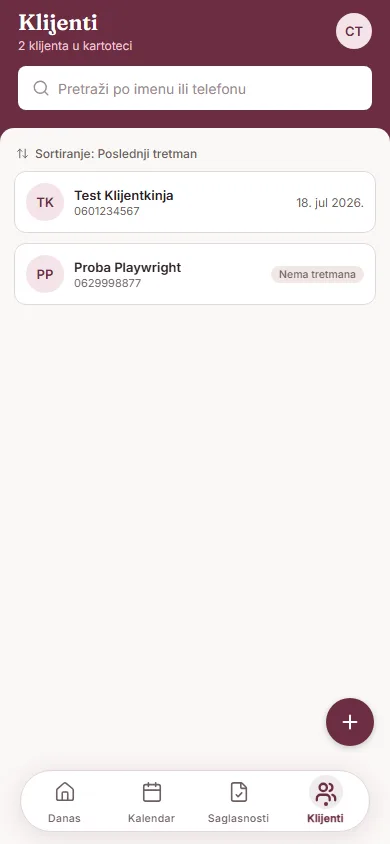
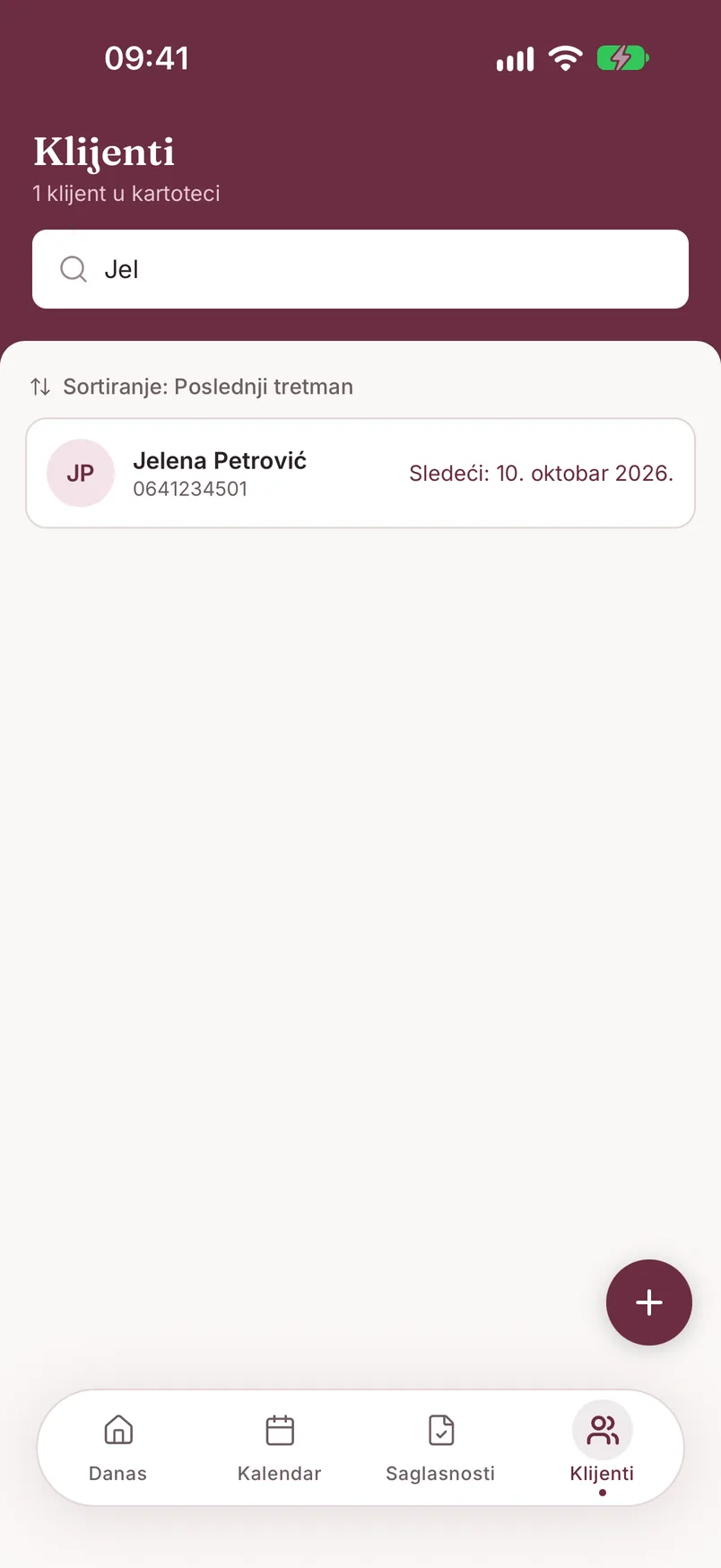
Na listi klijenata koristi polje „Pretraži po imenu ili telefonu" - lista se sužava dok kucaš. Red „Sortiranje:" ispod pretrage prebacuje između „Poslednji tretman" i „Abecedno".
Uz svaku klijentkinju desno vidiš datum sledećeg termina („Sledeći: ...") ili, ako ga nema, datum poslednjeg tretmana. Precrtana slušalica pored imena znači da WhatsApp poruke ne stižu na taj broj.
Arhiviranje klijentkinje
Karton se ne briše - arhivira se. Na kartonu dodirni ⋯ → „Arhiviraj klijenta" i potvrdi sa „Arhiviraj". Ako klijentkinja ima zakazane termine, aplikacija prvo pita šta sa njima: „Otkaži termine i arhiviraj" ili „Arhiviraj bez otkazivanja".
Arhivirana klijentkinja se više ne prikazuje u listi i pretrazi, a istorija tretmana i saglasnosti ostaje sačuvana.
Kako je vraćaš. Na dnu liste klijenata pojavljuje se red „Arhivirani (N)". Dodirni ga da se lista otvori, pa otvori karton - na vrhu je poruka „Klijent je arhiviran" i dugme „Vrati iz arhive". Dok je karton u arhivi, dugmad za termin, saglasnost i tretman nisu dostupna.
Odakle dolaze kontraindikacije
Tip kože i podton uneseš direktno na kartonu klijentkinje. Kontraindikacije i zdravstvene napomene (alergije, trudnoća, dijabetes, herpes, keloidni ožiljci i slično) ne unose se na kartonu - one dolaze iz formulara digitalne saglasnosti koju klijentkinja potpisuje pre tretmana. Zato se upozorenja na kartonu pojavljuju tek nakon što postoji potpisana saglasnost. Više na stranici Saglasnosti.
Adding a new client
On the "Clients" tab, tap the plus button in the bottom-right corner ("New client"), or - if the list is empty - "Add first client".
Field order in the form:
- Photo - optional
- First Name and Last Name - required
- Salutation - optional; how we address the client in WhatsApp messages (e.g. "Milice", the Serbian form of address for Milica). If left empty, the app works out the form itself
- Phone - required (e.g. 0641234567)
- Email - optional
- Date of birth - optional
- Skin type (Fitzpatrick) - optional, choose from I to VI
- Skin undertone - optional (warm / cool / neutral)
- Notes - optional
When you're done, tap "Save client".
When the phone number already exists
A phone number can only have one card. If you enter a number that already exists, a "Number already exists" dialog appears when you save, with two options:
- "Open existing card" - takes you to the card of the client who already has that number
- "Back" - returns you to the form to correct the number
If you're adding the client from the new appointment form, the first option reads "Use existing client" and the existing card is selected for that appointment right away.
Client card
At the top of the card are the name, the phone number with shortcuts for a quick call and WhatsApp message, the email and age, plus the photo if you added one. The ⋯ button in the top-right corner opens a menu with "Edit card" and "Archive client".
Below are the tags: warnings from the consent form (a yellow tag, e.g. "allergies - pigments/anesthetics"), skin type, undertone, how long the client has been in your records, and the consent status - "latest consent signed [date]", "latest consent not signed" or "no consents yet".
Four buttons take you further:
- "Schedule appointment" - the new appointment form with the client already selected
- "New consent" - signing on your phone
- "Send link" - a link for signing the consent remotely (Pro)
- "Add treatment" - logging a treatment
If the client has scheduled appointments, an "Upcoming appointments (N)" card shows the service, date and time of each. The first three are visible, and "Show all (N)" opens the rest. Tapping an appointment opens its details.
Next come "Notes" and the "Messages" section:
- the row with the latest message opens the conversation with the client (healing messages and replies)
- "WhatsApp messages" - a switch for automated messages and reminders to this client; when you turn it off, she gets no automated message at all (healing, reminders, confirmations)
- "WhatsApp on this number" - Pro plan only; if messages don't reach her number, tap "Not reaching" and her healing steps switch to manual mode. Undo the mark with "Undo"; it also clears itself when the client messages the salon or when you change her number. More on the Healing follow-up page
At the bottom are "Treatments" (service, treatment type, who performed it and the date - tap to open the treatment details) and "History" (consents and appointments).
Search and sorting
On the clients list, use the "Search by name or phone" field - the list narrows as you type. The "Sort:" row below the search switches between "Last treatment" and "Alphabetical".
Next to each client, on the right, you see the date of the next appointment ("Next: ...") or, if there is none, the date of the last treatment. A crossed-out phone icon next to the name means WhatsApp messages don't reach that number.
Archiving a client
A card is never deleted - it is archived. On the card, tap ⋯ → "Archive client" and confirm with "Archive". If the client has scheduled appointments, the app first asks what to do with them: "Cancel appointments and archive" or "Archive without canceling".
An archived client no longer appears in the list or in search, while the treatment history and consents stay saved.
How to restore. An "Archived (N)" row appears at the bottom of the clients list. Tap it to expand the list, then open the card - at the top there's a "Client is archived" notice and a "Restore from archive" button. While the card is archived, the appointment, consent and treatment buttons are unavailable.
Where contraindications come from
Skin type and undertone are entered directly on the client card. Contraindications and health notes (allergies, pregnancy, diabetes, herpes, keloid scarring and similar) are not entered on the card - they come from the digital consent form the client signs before treatment. That's why warnings only appear on the card once a signed consent exists. More on the Consents page.