
Klijenti
Clients
Karton klijenta, kontakt podaci, tip kože, kontraindikacije, pretraga klijenata.
Client records, contact details, skin type, contraindications, search.
Dodavanje novog klijenta
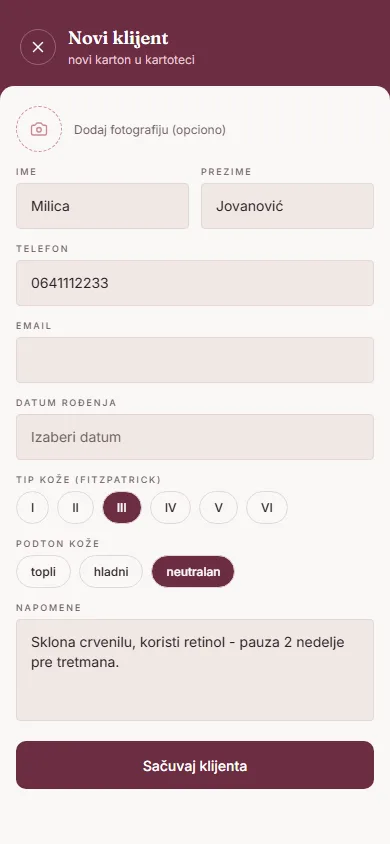
Na listi klijenata dodirni dugme „Novi klijent" (plus dugme u donjem desnom uglu), ili — ako je lista prazna — „Dodaj prvog klijenta".
Redosled polja u formularu:
- Fotografija — opciono
- Ime i Prezime — obavezno
- Telefon — obavezno
- Email — opciono
- Datum rođenja — opciono
- Tip kože (Fitzpatrick) — opciono, bira se od I do VI
- Podton kože — opciono (topli / hladni / neutralan)
- Napomene — opciono
Kad završiš, dodirni „Sačuvaj klijenta". Ako telefon koji unosiš već postoji u bazi, aplikacija pita da li želiš da otvoriš postojeći karton umesto da praviš novi.
Karton klijenta
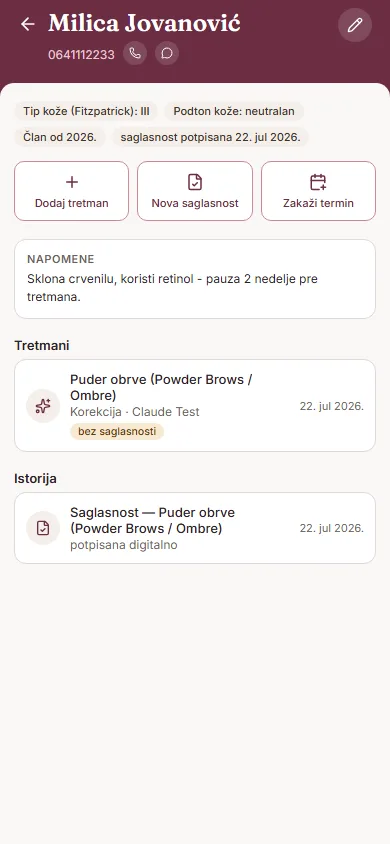
Na vrhu kartona su fotografija, ime i telefon klijenta, sa prečicama za brz poziv i WhatsApp poruku. Dugme sa olovkom otvara izmenu kartona.
Ispod se nalaze podaci o tipu kože i podtonu, datum od kada je klijent u tvojoj bazi, i status saglasnosti (potpisana / nije potpisana). Ako je klijent potpisao saglasnost sa zdravstvenim napomenama (npr. trudnoća, dijabetes, alergije, razređivači krvi), one se prikazuju kao upozorenja na kartonu.
Tri dugmeta vode dalje: „Dodaj tretman", „Nova saglasnost" i „Zakaži termin". Ako klijent ima zakazan termin, prikazuje se i kartica „Sledeći termin". Na dnu su „Istorija tretmana" i opšta „Istorija" (tretmani i saglasnosti zajedno).
Pretraga
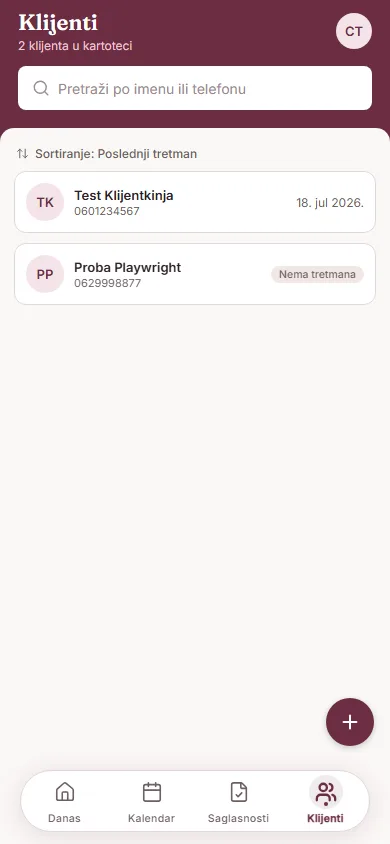
Na listi klijenata koristi polje „Pretraži po imenu ili telefonu". Dugme za sortiranje prebacuje između „Poslednji tretman" i „Abecedno".
Odakle dolaze kontraindikacije
Tip kože i podton uneseš direktno na kartonu klijenta. Kontraindikacije i zdravstvene napomene (alergije, trudnoća, dijabetes, herpes, keloidni ožiljci i slično) ne unose se na kartonu — one dolaze iz formulara digitalne saglasnosti koju klijent potpisuje pre tretmana. Zato se upozorenja na kartonu pojavljuju tek nakon što postoji potpisana saglasnost.
Adding a new client
On the clients list, tap "New client" (the plus button in the bottom-right corner), or — if the list is empty — "Add first client".
Field order in the form:
- Photo — optional
- First Name and Last Name — required
- Phone — required
- Email — optional
- Date of birth — optional
- Skin type (Fitzpatrick) — optional, choose from I to VI
- Skin undertone — optional (warm / cool / neutral)
- Notes — optional
When you're done, tap "Save client". If the phone number you enter already exists, the app asks whether you'd like to open the existing card instead of creating a new one.
Client card
At the top of the card are the client's photo, name and phone, with quick shortcuts to call and send a WhatsApp message. The pencil button opens the card for editing.
Below that are skin type and undertone, the date the client was added, and consent status (signed / not signed). If the client has signed a consent that includes health notes (e.g. pregnancy, diabetes, allergies, blood thinners), those show up as warnings on the card.
Three buttons take you further: "Add treatment", "New consent" and "Schedule appointment". If the client has an upcoming appointment, a "Next appointment" card appears too. At the bottom are "Treatments" and a general "History" (treatments and consents together).
Search
On the clients list, use the "Search by name or phone" field. The sort toggle switches between "Last treatment" and "Alphabetical".
Where contraindications come from
Skin type and undertone are entered directly on the client card. Contraindications and health notes (allergies, pregnancy, diabetes, herpes, keloid scarring and similar) are not entered on the card itself — they come from the digital consent form the client signs before treatment. That's why warnings on the card only appear once a signed consent exists.