
Termini i kalendar
Appointments & Calendar
Zakazivanje, izmena i otkazivanje, statusi, povezivanje sa Google kalendarom i šta uraditi kad veza istekne.
Scheduling, editing and cancelling, statuses, Google Calendar sync and what to do when the connection expires.
Zakazivanje novog termina
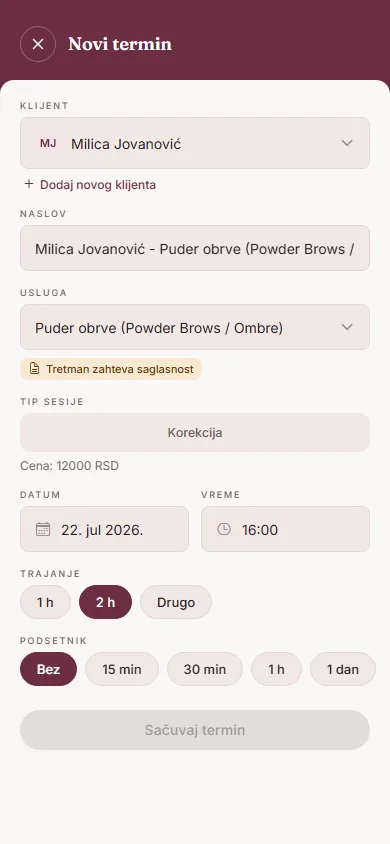
Dodirni „Novi termin" u zaglavlju kalendara (ili istoimeno dugme u praznom danu). Redosled u formularu:
- Klijent — obavezno; biraš iz liste ili preko „Dodaj novog klijenta" praviš karton direktno iz ovog ekrana
- Naslov — opciono, automatski se popuni na osnovu klijenta i usluge, ali možeš da ga izmeniš
- Usluga — obavezno; ako tretman zahteva saglasnost, pojavljuje se oznaka „Tretman zahteva saglasnost"
- Tip sesije — samo kod usluga koje imaju posebnu cenu po tipu (prvi tretman / korekcija / osvežavanje)
- Datum i Vreme — obavezno
- Trajanje — biraš iz ponuđenih dužina za tu uslugu, ili „Drugo" za ručni unos u minutima
- Podsetnik — Bez / 15 min / 30 min / 1 h / 1 dan pre termina
Dodirni „Sačuvaj termin". Ako se novo vreme preklapa sa postojećim terminom, aplikacija pita „Termin se preklapa" i nudi „Otkaži" ili „Zakaži svejedno".
Kad se termin vidi kao „Završen"
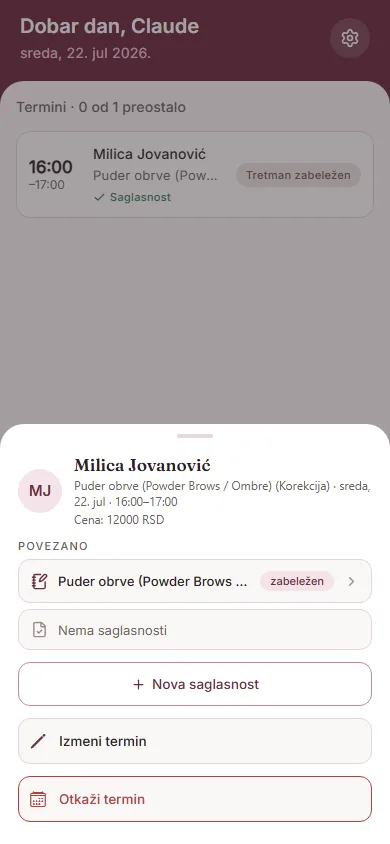
Na početnom ekranu „Danas", termin dobija oznaku „Završen" tek kad prođe njegovo vreme završetka i kad je za njega već zabeležen tretman. Ako vreme termina prođe, a tretman još nije unet, termin ostaje bez oznake „Završen" — dodaj tretman sa kartona klijenta da bi se to promenilo.
Druge oznake koje možeš videti na ekranu „Danas": „Tretman zabeležen" (tretman je unet i pre nego što termin istekne) i „U toku" (dok termin traje).
Izmena i otkazivanje
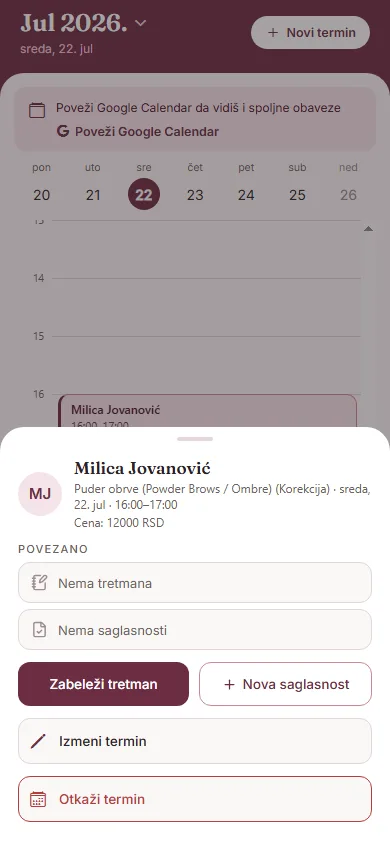
Dodirni zakazan termin u kalendaru da otvoriš opcije. „Izmeni termin" vraća te u isti formular, sa već unetim podacima.
„Otkaži termin" traži potvrdu — „Termin će biti trajno otkazan i uklonjen iz kalendara. Ova radnja se ne može poništiti." — pa je koristi samo kad si sigurna/siguran.
Ako je termin stigao iz Google kalendara i povezan je sa klijentom, dostupna je i „Otkači klijenta" — termin ostaje u kalendaru, samo se raskida veza sa tim klijentom.
Povezivanje sa Google kalendarom
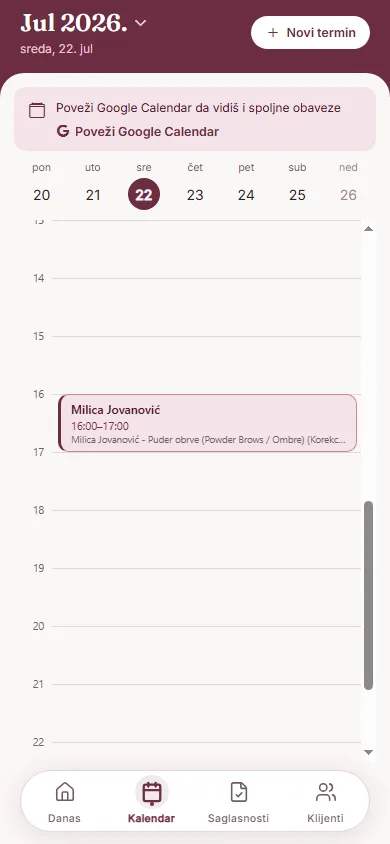
Kad Google kalendar nije povezan, na tabu Kalendar vidiš poruku „Poveži Google Calendar da vidiš i spoljne obaveze" i dugme „Poveži Google Calendar". Isto možeš uraditi i preko Podešavanja → „Google kalendar". Dodirom se otvara Google prijava u pregledaču; kad se povežeš, prikazuje se datum povezivanja i vreme poslednje sinhronizacije.
Na ekranu „Google kalendar" dalje imaš: „Sinhronizuj sada", „Promeni nalog" i „Prekini vezu" (uz potvrdu — termini ostaju sačuvani u aplikaciji, briše se samo veza sa Google nalogom, i možeš je ponovo uspostaviti kad god želiš).
Kad veza istekne
Ako veza sa Google nalogom istekne, na tabu Kalendar i na ekranu „Google kalendar" pojavljuje se poruka „Sinhronizacija ne radi" — „Veza sa Google nalogom je istekla. Termini možda nisu ažurni." Dodirni „Poveži ponovo" — otvara se ista Google prijava kao pri prvom povezivanju.
Ako sačuvaš termin lokalno, a slanje u Google kalendar ne uspe, dobićeš poruku da proveriš konekciju na tabu Kalendar — sam termin ostaje sačuvan u PMUdesk-u bez obzira na to.
Scheduling a new appointment
Tap "New appointment" in the calendar header (or the same button on an empty day). Field order in the form:
- Client — required; pick from the list, or create a card on the spot via "Add new client"
- Title — optional, auto-filled from the client and service, but editable
- Service — required; if the treatment requires consent, a "Treatment requires consent" badge appears
- Session type — only for services with per-session pricing (first treatment / touch-up / refresh)
- Date and Time — required
- Duration — pick from the durations offered for that service, or "Other" to enter minutes manually
- Reminder — None / 15 min / 30 min / 1 h / 1 day before the appointment
Tap "Save appointment". If the new time overlaps an existing appointment, the app asks "Appointment overlap" and offers "Cancel" or "Schedule anyway".
When an appointment shows as "Done"
On the "Today" home screen, an appointment gets the "Done" label once its end time has passed and a treatment has already been logged for it. If the time passes and no treatment has been logged yet, the appointment stays without the "Done" label — log the treatment from the client's card to change that.
Other labels you may see on the "Today" screen: "Treatment logged" (a treatment was logged before the appointment ended) and "In progress" (while the appointment is happening).
Editing and cancelling
Tap a scheduled appointment on the calendar to open its options. "Edit appointment" takes you back into the same form, pre-filled.
"Cancel appointment" asks for confirmation — "The appointment will be permanently cancelled and removed from the calendar. This action cannot be undone." — so only use it when you're sure.
If the appointment came from Google Calendar and is linked to a client, "Unlink client" is also available — the appointment stays on the calendar, only the link to that client is removed.
Connecting Google Calendar
When Google Calendar isn't connected, the Calendar tab shows "Connect Google Calendar to also see your external commitments" and a "Connect Google Calendar" button. You can do the same from Settings → "Google Calendar". Tapping it opens Google sign-in in your browser; once connected, you'll see the connection date and last sync time.
On the "Google Calendar" screen you also get: "Sync now", "Change account" and "Disconnect" (with a confirmation — appointments stay saved in the app, only the connection to your Google account is removed, and you can reconnect any time).
When the connection expires
If the connection to your Google account expires, both the Calendar tab and the "Google Calendar" screen show "Sync is not working" — "The connection to your Google account has expired. Appointments may be out of date." Tap "Reconnect" — it opens the same Google sign-in as the first time you connected.
If you save an appointment locally but pushing it to Google Calendar fails, you'll see a message to check the connection on the Calendar tab — the appointment itself stays saved in PMUdesk regardless.