
Tretmani
Treatments
Evidencija tretmana, pigment formule, fotografije pre i posle.
Treatment records, pigment formulas, before/after photos.
Dodavanje novog tretmana
Tretman dodaješ dugmetom „Dodaj tretman" na kartonu klijenta, ili direktno iz termina u kalendaru — tada su klijent i termin već povezani.
Redosled u formularu:
- Klijent — obavezno (ako otvaraš iz kartona ili termina, već je izabran)
- Termin — opciono povezivanje sa zakazanim terminom
- Saglasnost — opciono povezivanje sa potpisanom saglasnošću, ili pokretanje nove (videti stranicu Saglasnosti)
- Procedura — obavezno, bira se sa cenovnika tvog salona
- Pigment formula — pojavljuje se samo ako izabrana procedura koristi pigmente/igle
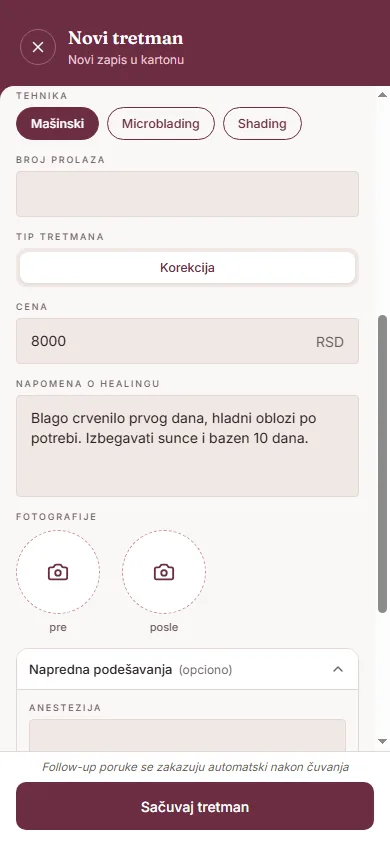
- Tip tretmana — Prvi tretman / Korekcija / Osvežavanje (samo ako usluga ima poseban cenovnik po tipu)
- Cena — u RSD
- Napomena o healingu — preporuke za negu, reakcija kože
- Fotografije — pre / posle
- Napredna podešavanja (opciono) — anestezija, trajanje, igla, dubina
Dodirni „Sačuvaj tretman". Napomenu o healingu koju uneseš ovde vidiš kasnije na kartonu klijenta — videti stranicu Healing follow-up.
Pigment formula
Ako klijent već ima prethodni tretman, dostupno je dugme „Kopiraj formulu sa poslednjeg tretmana".
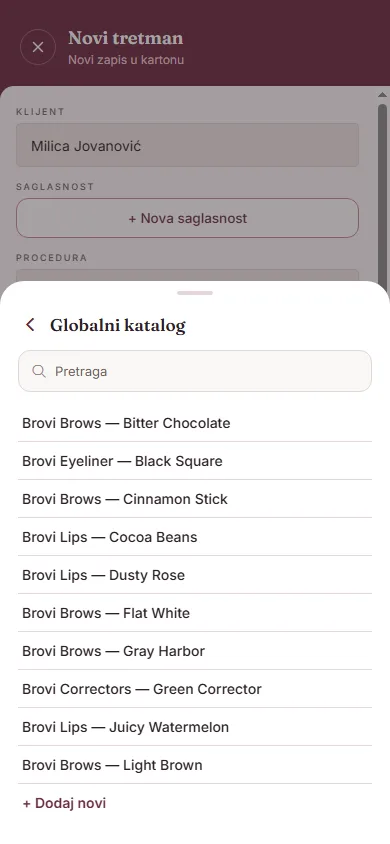
Sastojke dodaješ preko „+ Dodaj sastojak" — boju biraš iz biblioteke pigmenata tvog salona (ili iz zajedničkog kataloga, ili je dodaješ kao potpuno novu stavku uz Brend, Liniju i Naziv boje). Za svaki sastojak zatim uneseš Batch/LOT (opciono), rok trajanja i količinu u kapima — odnos (npr. „Odnos: 3 : 1") aplikacija sama izračunava na osnovu unetih kapi.
Dodatna polja: stanje postojećeg pigmenta (kod korekcije/osvežavanja), tehnika (Mašinski / Microblading / Shading) i broj prolaza.
Svoju biblioteku pigmenata možeš urediti i nezavisno, na posebnom ekranu „Biblioteka pigmenata", dugmetom „Dodaj pigment".
Procedure
Lista procedura koje biraš u formularu tretmana dolazi sa cenovnika tvog salona (obrve, usne, oči, medicinski tretmani, ostalo) — ne postoji fiksna lista u aplikaciji, svaki salon je podešava za sebe.
Fotografije pre i posle
U sekciji „Fotografije" imaš dva kružna slota — „pre" i „posle". Dodirom na prazan slot biraš „Kamera" ili „Galerija". Dodirom na već postavljenu fotografiju otvara se pregled sa mogućnošću „Promeni fotografiju".
Istorija tretmana
Na kartonu klijenta, u sekciji „Tretmani", svaki tretman je prikazan sa nazivom procedure, tipom tretmana, imenom majstora, brojem fotografija i datumom. Dodirom na tretman otvaraš ga za pregled ili izmenu.
Adding a new treatment
Start a treatment with the "Add treatment" button on a client's card, or directly from an appointment on the calendar — in that case the client and appointment are already linked.
Order in the form:
- Client — required (already selected if you opened this from a card or appointment)
- Appointment — optionally link to a scheduled appointment
- Consent — optionally link a signed consent, or start a new one (see the Consent Forms page)
- Procedure — required, chosen from your salon's price list
- Pigment formula — appears only if the selected procedure uses pigments/needles
- Treatment type — First treatment / Touch-up / Refresh (only for services with per-type pricing)
- Price — in RSD
- Healing notes — aftercare recommendations, skin reaction
- Photos — before / after
- Advanced settings (optional) — anesthesia, duration, needle, depth
Tap "Save treatment". The healing note you enter here shows up later on the client's card — see the Healing follow-up page.
Pigment formula
If the client already has a previous treatment, a "Copy formula from last treatment" button is available.
Add ingredients via "+ Add ingredient" — pick the color from your salon's pigment library (or the shared catalog, or add it as a brand-new item with Brand, Line and Color name). For each ingredient you then enter Batch/LOT (optional), expiry date and the amount in drops — the ratio (e.g. "Ratio: 3 : 1") is calculated automatically from the drops you enter.
Additional fields: existing pigment condition (for touch-up/refresh sessions), technique (Machine / Microblading / Shading) and number of passes.
You can also manage your pigment library independently, on its own "Pigment library" screen, via the "Add pigment" button.
Procedures
The list of procedures you choose from in the treatment form comes from your salon's own price list (brows, lips, eyes, medical treatments, other) — there's no fixed list in the app; every salon sets it up for itself.
Before and after photos
In the "Photos" section you have two round slots — "before" and "after". Tapping an empty slot lets you choose "Camera" or "Gallery". Tapping a slot that already has a photo opens a preview with a "Change photo" option.
Treatment history
On the client's card, in the "Treatments" section, every treatment is shown with the procedure name, treatment type, artist name, photo count and date. Tap a treatment to open it for viewing or editing.